RetroAchievements in LaunchBox
Learn how to integrate RetroAchievements with LaunchBox to unlock, track, and display achievements across your retro game library. Includes setup, scanning, progress tracking, and advanced tips.
Written By AstroBob
Last updated 5 months ago
RetroAchievements is a free online service that brings modern-style achievements to classic games. By using supported emulators, RetroAchievements tracks your in-game progress and unlocks achievements for thousands of retro titles—just like Xbox or PlayStation trophies, but for NES, SNES, Game Boy, and more.
🎮 Why Use RetroAchievements?
Integrating RetroAchievements with LaunchBox enhances your retro gaming experience in multiple ways:
🌐 Log in once, and LaunchBox will automatically configure RetroAchievements across all supported emulators
🎮 Scan your library and see which games support RetroAchievements using badges
📈 Track your progress, with RetroAchievements progression data driving LaunchBox’s game progress system
LaunchBox makes it easy to connect your RetroAchievements account and even shows which of your games support achievements using optional badges and filters.
✍️ How to Sign Up for RetroAchievements
Getting started is simple and free:
Visit retroachievements.org
Click Create Account in the top right
Fill out your username, password, and email
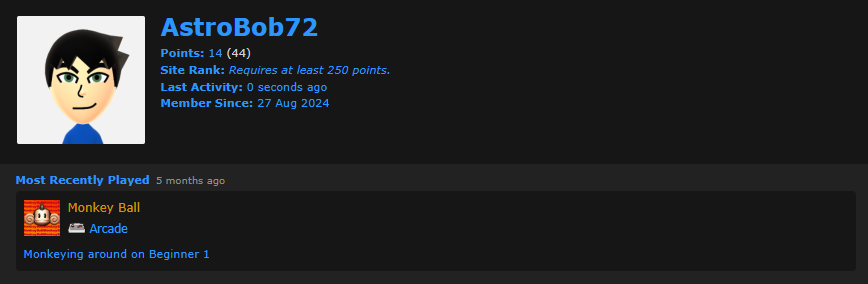
Once logged in, go to your Account Settings and copy your API Key (you'll need this for LaunchBox integration)
Once you’ve signed up, you're ready to connect your account to LaunchBox and start unlocking achievements!
🔑 How to Connect Your RetroAchievements Account
To sign in through LaunchBox:
Go to
Tools > Achievements > Connect To RetroAchievements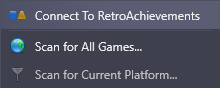
Fill out your account details and API key
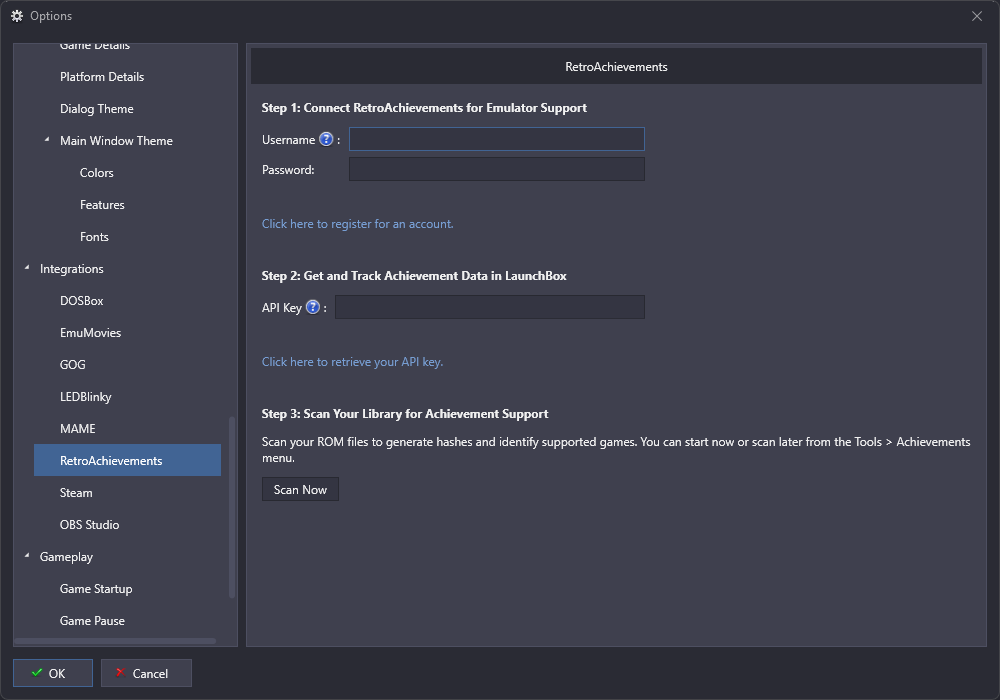
That's it! LaunchBox will now manage your connection and integrate RetroAchievements into all compatible features.
Once connected, you'll see your Retro Score displayed in the top-right corner of LaunchBox. You can even choose from 1 of multiple stats to display here such as Games Beaten, Hardcore Points, and much more. To choose what appears, right-click the RetroAchievements stat in the top menu bar and select the stat you want LaunchBox to display.
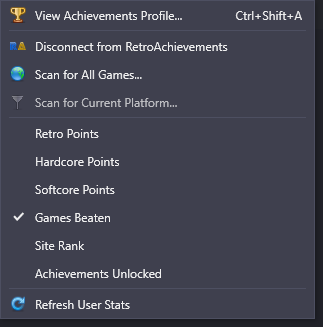
Clicking on the chosen stat it will show a summary of your RetroAchievements profile, right from within LaunchBox.
🔍 Scanning Your Library
Once connected, you can scan your library to see which games support RetroAchievements sets:
Go to
Tools > AchievementsClick Scan Now
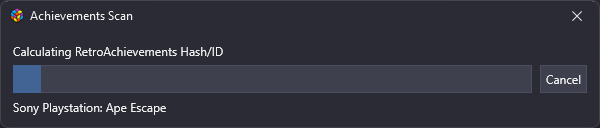
LaunchBox will search your entire library for any games that support achievement sets.
📌 Note: We use a service called RAHasher to detect if a game in your library is compatible with the RetroAchievements set. For more information on how this works, check out the RA Hash Labels Guide.
To visually see which of your games support achievements:
Go to
Badges > Game Attributes > AchievementsA badge will now appear next to games that are supported on RetroAchievements
⚠️ Note: If you experience issues getting achievement badges to display, please refer to our dedicated troubleshooting guide below:
Troubleshooting RetroAchievements Badges in LaunchBox
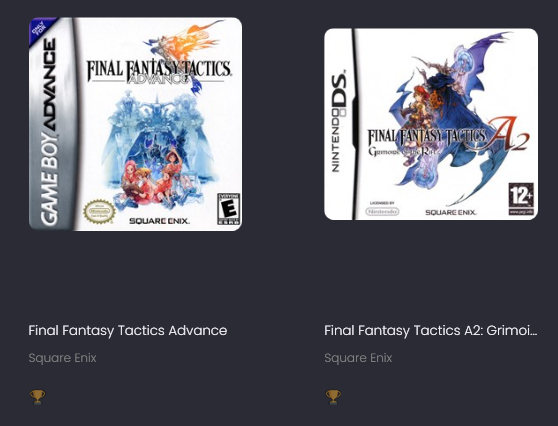
📌 Tip: New achievement sets are added to RetroAchievements almost daily. To stay current with new sets that are added, you can periodically re-run the achievement scan:
Go to
Tools > Achievements > Scan for All Gamesto re-scan your entire libraryOr scan for a specific platform as needed
🎯 Filtering and Playlists for Achievements
Similar to services like Steam and GOG, LaunchBox allows you to filter by games that support achievements:
Use the Quick Filter and select
Achievements > Yesto see only games across all storefront that support achievements
LaunchBox also includes a dedicated RetroAchievements filter when creating auto-populated playlists. This allows you to filter your collection by conditions such as:
SupportsNot SupportedNone EarnedSome EarnedAll Earned
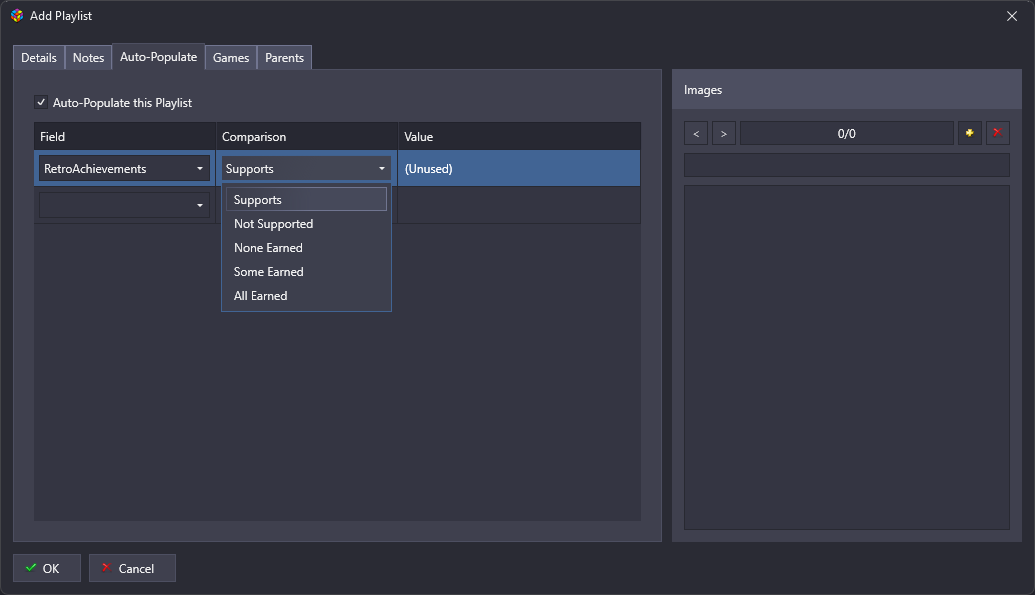
You can use these filters to build powerful custom playlists. For example:
A playlist of all RetroAchievements-supported games where you haven’t earned any achievements
A playlist showing games where you’ve earned 100% of achievements
⚙️ Advanced Options per Emulator
By default, LaunchBox will automatically log you into RetroAchievements for any of our supported emulators (currently RetroArch, Dolphin, and PCSX2).
If you’d prefer to disable this behavior for a specific emulator:
Go to
Tools > Manage > EmulatorsSelect the emulator you want
Under the RetroAchievements section:
Uncheck
Log in on Game Launchto prevent auto-loginToggle
Enable Hardcore Modeif you prefer to play in softcore mode on that emulator
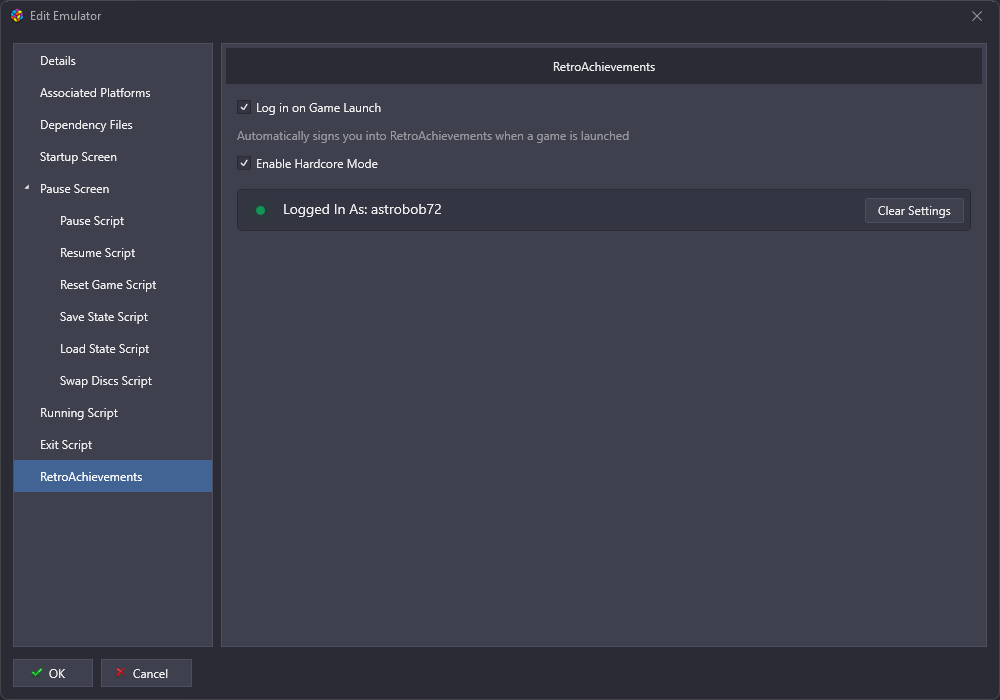
📘 Learn more about Hardcore vs Softcore Mode here: RetroAchievements Rules & Guidelines
🧾 Viewing Achievements in LaunchBox
When you open the Game Details Page, for supported games you'll see a section called RetroAchievements.
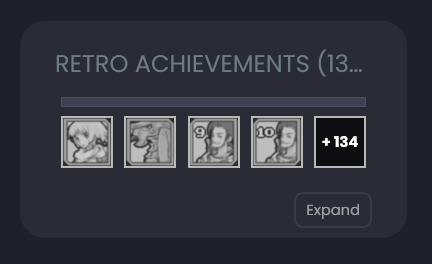
This shows all available achievements for the game and highlights the ones you've unlocked. You can click the Expand button to view the full list.
You'll also notice special icons on certain achievements that indicate they are Progression or Win Condition achievements—these mark key milestones in the game, such as completing a level or beating the final boss.
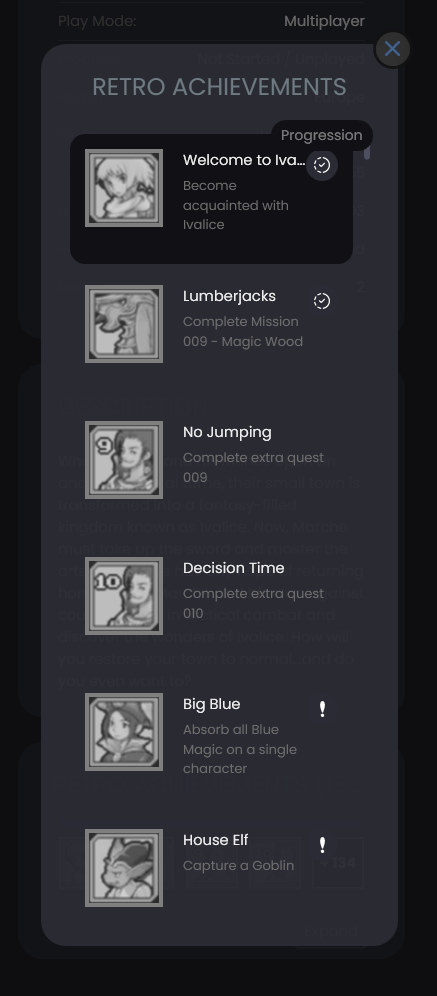
📘 Learn more about Progression and Win Conditions here: Progression Guidelines
As you unlock achievements through various emulators, this section will automatically update to reflect your progress.
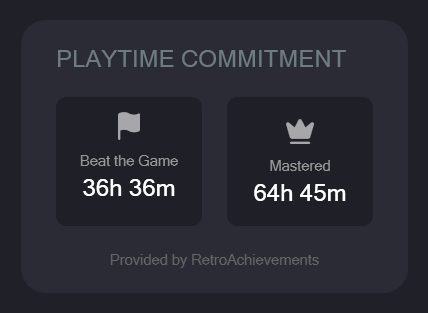
We also display stats such as the average time to beat / master a game, using information prvoided by RetroAchievements.
🕹️ Viewing Achievements in-Game and via Big Box
Before launching a game in Big Box, you can get a quick overview of its achievements:
Highlight a game and select
View Achievements
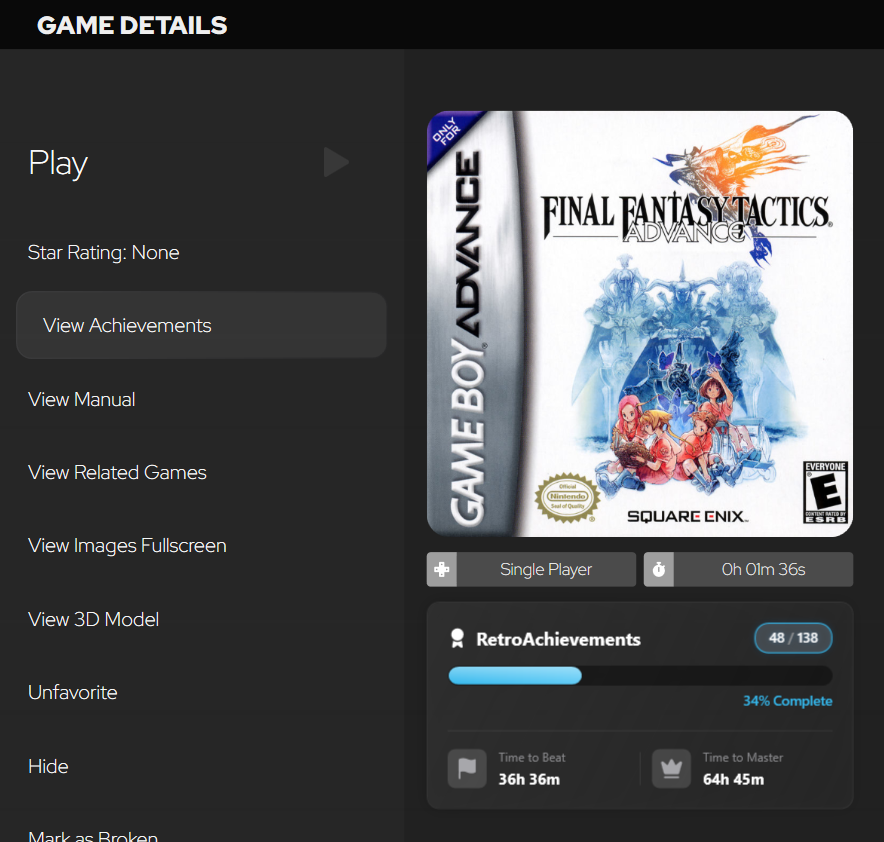
This will show you a list of all achievements for the game, including which ones you've unlocked and any designated Progression / Missable achievements.
You can even filter achievements using the pre-defined filters.
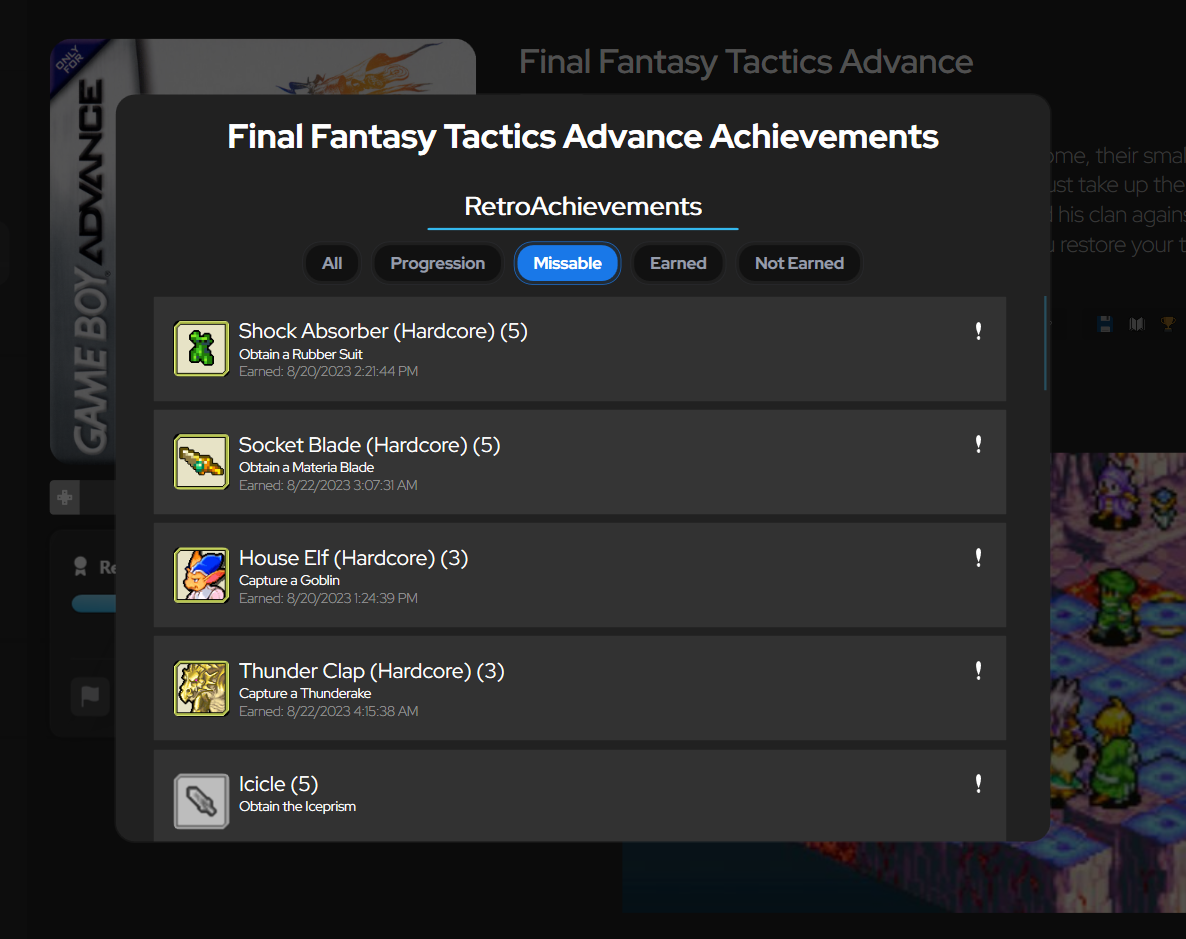
You can also access this same list while in-game:
Bring up the Pause Menu in LaunchBox or Big Box
Select
View Achievements
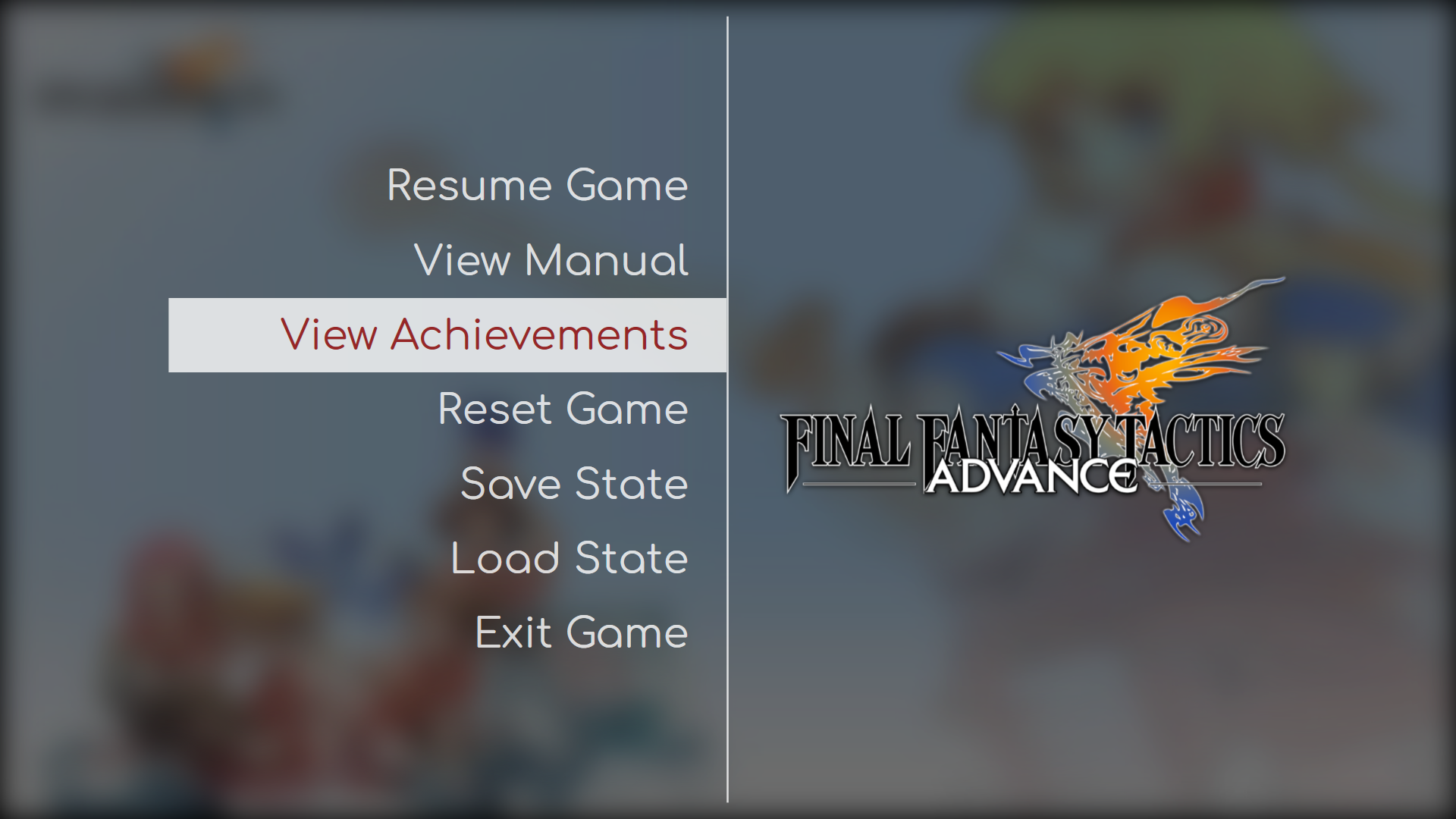
This is especially handy when you're deep into the action and want to check what goals are left to accomplish.
🧩 Game Progress Tracking with RetroAchievements
LaunchBox's Game Progress Tracking feature allows you to automatically update a game’s progress status based on your RetroAchievements activity.
To learn more about LaunchBox’s Game Progress Tracking in general, see this guide: Game Progress Tracking Guide
You can enable this under: Tools > Options > Game Progress Automation
If Automatic Progress Tracking is turned on, LaunchBox will update the progress field for games when certain conditions are met. Specifically for RetroAchievements, these include:
Games you've beaten with RetroAchievements in softcore mode
Games you've beaten with RetroAchievements in hardcore mode
Games where you've earned every achievement on RetroAchievements (softcore mode)
Games where you've earned every achievement from any source (RetroAchievements must be in hardcoremode)
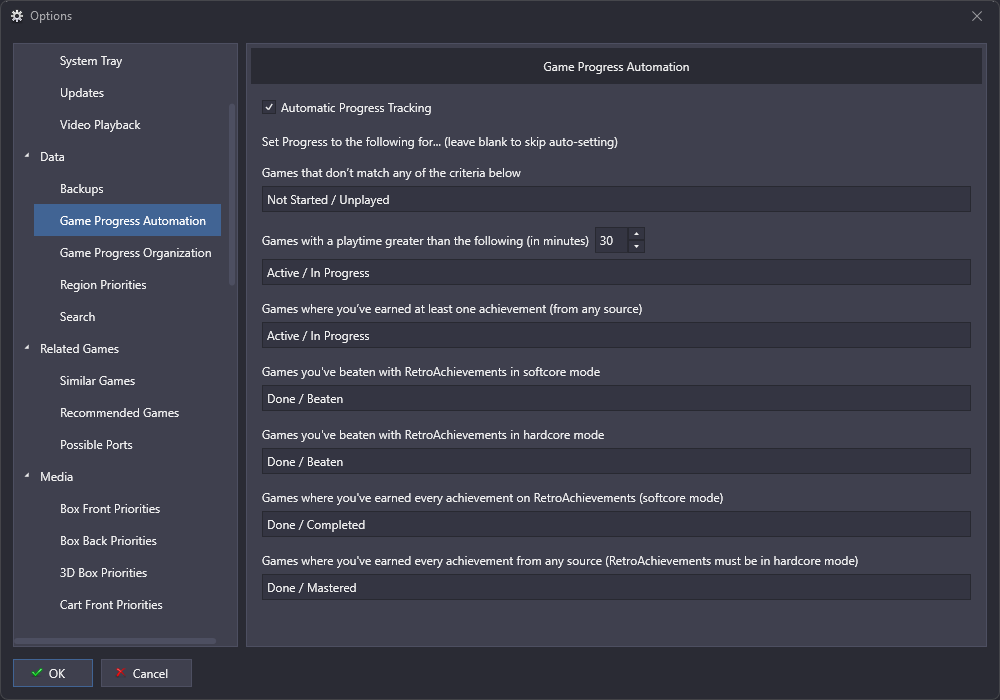
These conditions align with Retro Achievements's progression terminology:
Beaten (Softcore)
Beaten
Completed
Mastered
If you're familiar with these concepts, you’ll know that RetroAchievements uses these states to denote various levels of progression, even assigning badges to games on the RetroAchievements website (see below).
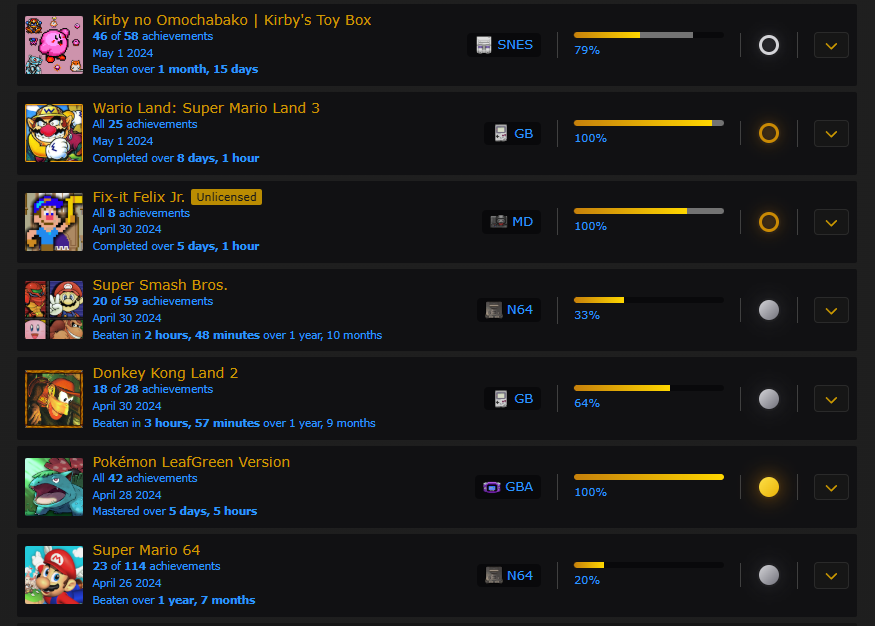
When a game reaches one of these states in RetroAchievements, LaunchBox can automatically set its Progression Status based on the preferences set via the Game Progress Automation screen.
This progress is updated automatically, so you'll notice that as soon as you hit one of these states, once you close the emulator, LaunchBox will update the game’s Progress status and the badge will be updated to reflect this.
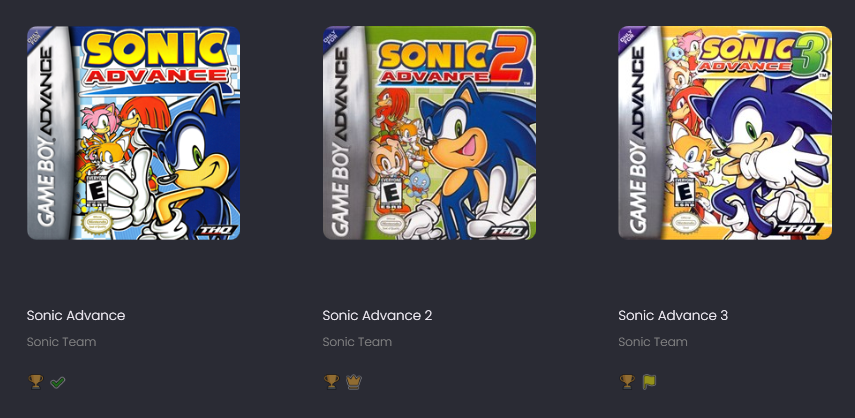
You can use these progress statuses to create powerful playlists, helping you dig deep into your RetroAchievements backlog to master your games. 🏅