Managing Save Games and States
Written By AstroBob
Last updated 5 months ago
LaunchBox lets you manage your save files and save states directly within LaunchBox. That means no more hunting through file systems or worrying about filenames. LaunchBox helps organize, back up, restore, and manage your saves for supported emulators.
⚠️ If you are upgrading to version 13.27 from an earlier version of LaunchBox and have used Save Management in the past, please refer to our migration guide for important information regarding recent changes.
13.27 Save Management Migration Guide
🎮 Supported Emulators
LaunchBox supports save management for:
RetroArch
Dolphin (for Nintendo GameCube and Nintendo Wii)
PCSX2 (for Sony PlayStation 2)
🧠 How Save Management Works
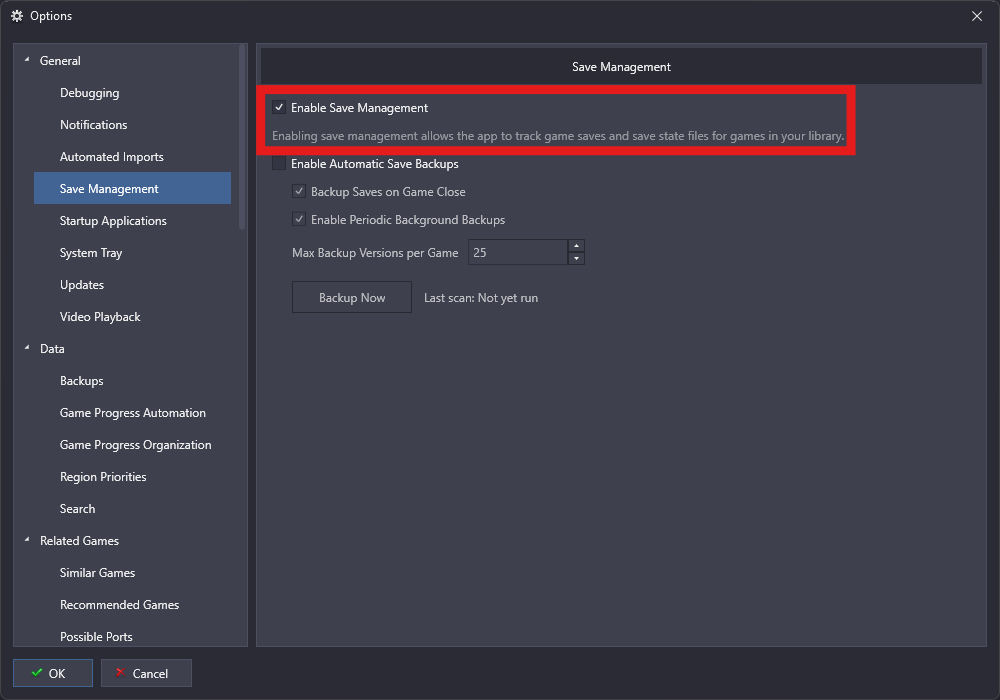
Save management is enabled in new LaunchBox builds by default.
If you need to turn it on manually:
Go to
Tools > Options > Save ManagementTurn on
Enable Save Management
To access save management for a specific game:
Go to
Edit Game > Metadata > Game Saves
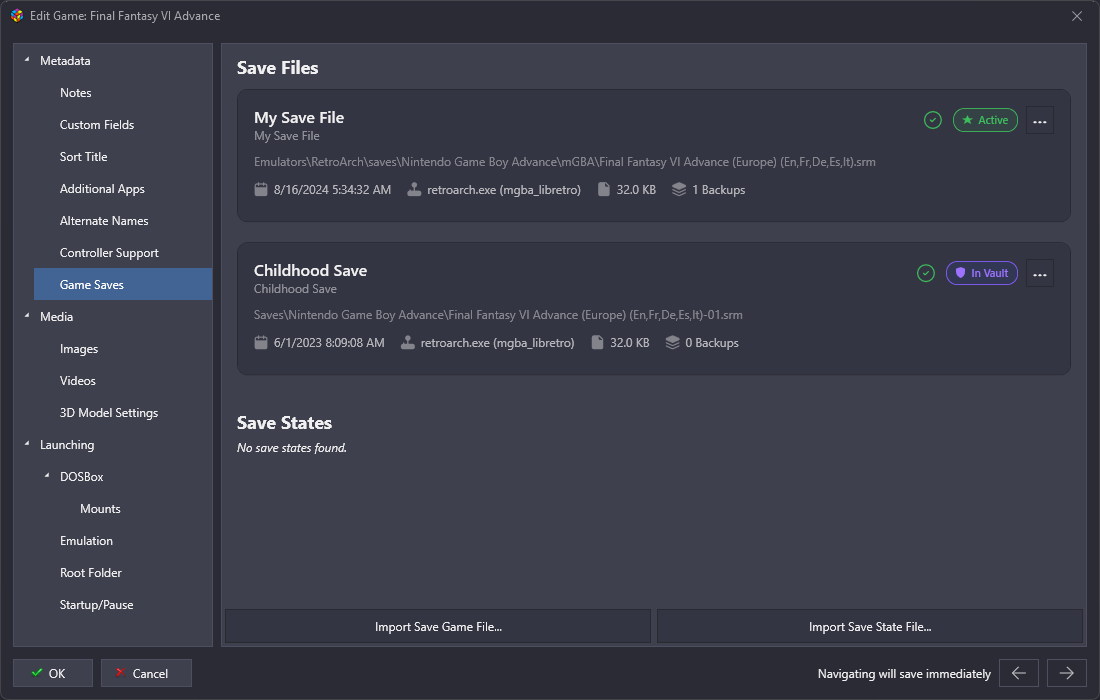
Here LaunchBox organizes saves into save groups. Each group represents one save file or one save-state slot and can contain:
the current active save that the emulator is using
older backup versions managed by LaunchBox
In practice, that means:
LaunchBox can show you the current save and its backup history together
You can back up your current save at any time
You can restore an older version when needed
You can rename save groups to make them easier to recognize
This applies to both save files and save states.
💡 Everyday Examples
Importing an old save
Let's say you have a save from another setup, such as an old memory card dump or a copied emulator save:
open
Edit Game > Metadata > Game Saveschoose
Import SaveLocate the save file you want to import
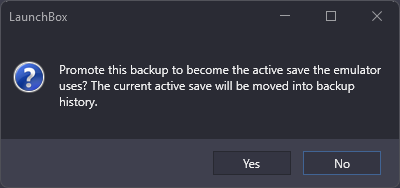
Select your newly imported save and choose
Set As Activeto promote it to the active save
Creating a restore point
If you are about to make a big choice in an RPG or start a difficult section:
open the
Game Savespagechoose
Backup Savefor the current active saveoptionally rename the save group or version so it is easy to recognize later
This gives you a clean restore point without needing to manually copy files around in Windows.
Using save states
Save states work much the same way, but supported emulators can have multiple active save-state slots. LaunchBox groups those by slot so you can still manage them clearly.
🛠️ Save Actions and Indicators
Most save actions are available from the save group's options menu inside:
Edit Game > Metadata > Game Saves
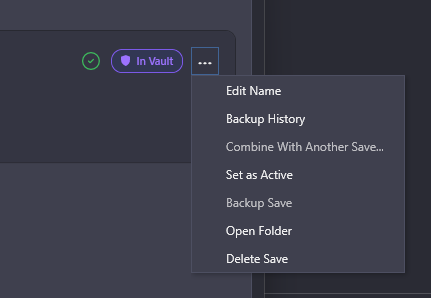
In that page, select a save group and open its options menu to access actions such as:
Edit NameBackup HistoryCombine With Another SaveSet As ActiveBackup SaveDelete Save
What Active and Vault Mean
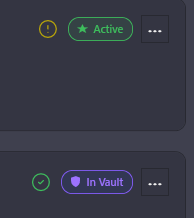
You may see saves identified as Active or Vault.
Active means:
this is the live save currently used by the emulator
if you launch the game, this is the save the emulator will use
Vault means:
this version is a LaunchBox-managed backup stored in the LaunchBox save vault
it is part of the save history, but it is not the live save currently in use
In simple terms, Active is the save you are currently playing on, and Vault is a backup copy stored by LaunchBox.
What the No Backup Symbol Means
LaunchBox also shows backup status indicators for save groups.
If you see the
No Backupsymbol, it means the current active save does not yet have a matching backup in the Vault.
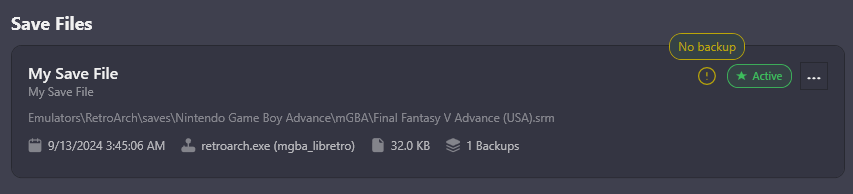
That usually means the save has not been backed up yet, automatic backups have not run yet, or the active save changed since the last backup.
Example:
You play for two hours
Your active save changes during that session
You have not backed it up yet
LaunchBox shows the
No Backupstatus to let you know the current progress is not yet safely stored in the Vault
If you see that symbol and want to protect your progress, back up the save manually or make sure automatic backups are enabled and have had a chance to run.
Edit Name
Edit Name lets you change two different things:
the name of the save group
the label of the active save file
These are not the same thing.
The save group name is the main name for the whole save history. The save file label is the label for one specific save version, usually the active one.
Example:
Save group name:
Main PlaythroughActive save label:
Before Final Boss
In that example:
Main Playthroughis the overall name for the save groupBefore Final Bossis the label for the current save version inside that group
This is useful when you want one clear name for the whole run, but also want a more specific label for the current moment in that run.
Backup History
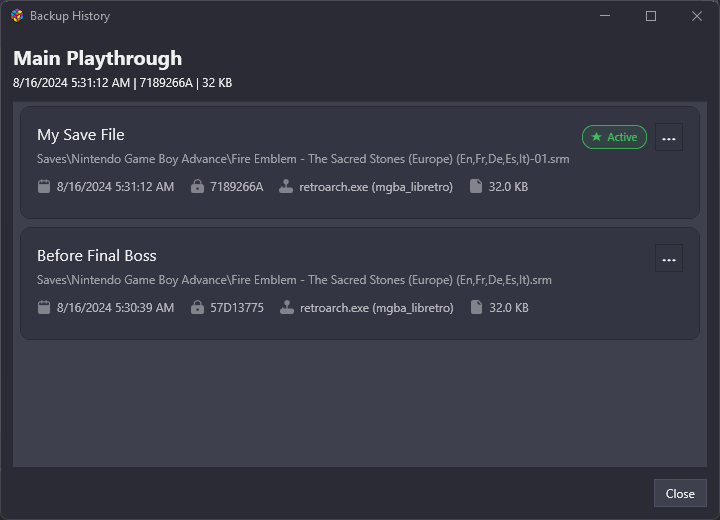
Backup History opens the full version history for that save group.
This view shows the current active save and the older Vault versions for that save.
From there, you can restore, rename, delete, or split out an older version.
How to navigate it:
open the save group's options menu
choose
Backup Historyselect the version you want to inspect
use that version's options menu for actions such as restore, rename, or delete
Combine With Another Save
Combine With Another Save merges two save groups into one shared save history.
This is useful when LaunchBox has two save groups that you know actually belong to the same playthrough.
Example:
You imported an old save manually
Later, LaunchBox detected your current active save as a separate save group
You know both are really part of the same run
Use
Combine With Another Saveto merge them into one save history
After combining, both saves appear under one save group and share one history.
Set As Active
Set As Active makes the selected Vault save the live save for that game.
Use this when:
you want to switch back to an older save and continue playing from there
you imported a save and want to use it as the current active save
Example:
You have a backup called
Before Final BossOpen that save group's options menu
Choose
Set As ActiveLaunchBox restores that version so it becomes the save the emulator uses
Backup Save
Backup Save creates a new Vault backup of the current active save.
Use this when:
you want a restore point before a difficult fight
you are about to make a major choice in a story-driven game
you want to keep a copy of your current progress before experimenting
Example:
You are about to enter the Elite Four in Pokemon
Open the save group's options menu
Choose
Backup SaveLaunchBox creates a new backup in the Vault so you can return to that moment later
Delete Save
Delete Save permanently deletes the save files for that save group after confirmation.
⚠️ If you delete a save group, LaunchBox removes the underlying save files or save folders, not just the entry in the interface.
Use this carefully. Good times to use it:
you are sure the save is no longer needed
you have already made a backup you want to keep
you are cleaning up duplicate or test saves
If you are unsure, create a backup first instead of deleting.
📁 Where LaunchBox Backups Live
LaunchBox-managed backups are stored under:
LaunchBox\Saves\<Platform>\
The naming still follows the same basic pattern:
first backup:
<ROM name><extension>additional backups:
<ROM name>-01<extension><ROM name>-02<extension>
If the source being backed up is a folder instead of a single file, LaunchBox stores the backup as a .7z archive.
That matters especially for emulator saves that are directory-based, such as some Dolphin Wii saves.
🔁 Automatic Save Backups
LaunchBox includes automatic save backup options under:
Tools > Options > Save Management
The main option is Enable Automatic Save Backups.
When this is enabled, LaunchBox can automatically create LaunchBox-managed backups of your active saves so you do not have to remember to back them up manually every time.
This feature is also intended to support additional save-management improvements, so enabling automatic backups helps prepare your library for broader save-management workflows.
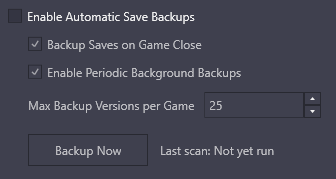
The related options control when and how those backups are created:
Backup On Game Close
If Backup On Game Close is enabled, LaunchBox attempts to back up the current active save when you finish playing a game.
Example:
You play
The Legend of Zelda: The Wind Wakerin DolphinYou close the game
LaunchBox creates a fresh backup of the current save in
LaunchBox\Saves\Nintendo GameCube\
Periodic Backup Enabled
If Periodic Backup Enabled is enabled, LaunchBox can also create automatic backups while you are playing instead of waiting until the game closes.
Backup Now
The Backup Now button manually starts a save scan and creates backups where needed across your library.
This is useful when you just enabled automatic backups, imported a lot of saves, or want a manual backup pass before making major changes.
Max Auto Backups Per Game
This setting controls how many automatic backups LaunchBox keeps for each save history.
If you set a limit, LaunchBox removes the oldest automatic backups once that limit is reached.
If you set it to No Limit, LaunchBox will keep creating new automatic backups without trimming older ones.
Example:
If the limit is
5, LaunchBox keeps the 5 newest automatic backups for that save historyWhen a new one is created, the oldest one is removed
Automatic backups are designed to quietly protect your progress in the background.
🏷️ Badges and Filters
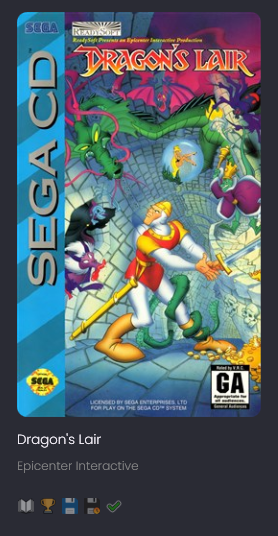
You can use badges and filters to quickly identify games with saves or states.
Enable the badge:
Badges > Game Attributes > Enable Has Saved Games / States
Use the filter:
Game Saves > Has Any Saved Game / State
This is especially useful if you want to find games with existing saves or quickly review your library.
➕ Additional Apps
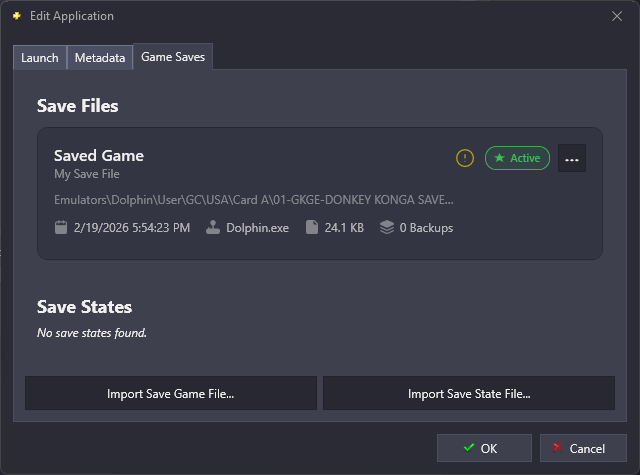
Additional apps still have their own save management context.
each additional app can have its own save scan
each additional app can have its own save groups and backup history
🕹️ Save Path Details
The sections below cover the more detailed emulator-specific save locations that LaunchBox supports.
🕹️ RetroArch Save Path Examples
RetroArch supports several common save directory layouts. LaunchBox works with settings such as:
savefile_directorysavestate_directorysort_savefiles_by_content_enablesort_savefiles_enablesavestates_in_content_dirsavefiles_in_content_dir
Basic RetroArch save path
If RetroArch is using a normal save directory:
LaunchBox\Emulators\RetroArch\saves\Super Metroid.srm
Sorted by content folder
If sort_savefiles_by_content_enable = true, LaunchBox expects an extra folder based on the ROM's parent folder:
LaunchBox\Emulators\RetroArch\saves\Super Nintendo Entertainment System\Super Metroid.srm
Sorted by core
If sort_savefiles_enable = true, LaunchBox expects an extra folder for the RetroArch core name:
LaunchBox\Emulators\RetroArch\saves\Super Nintendo Entertainment System\Snes9x\Super Metroid.srm
Save states
RetroArch save states follow the matching state directory rules, for example:
LaunchBox\Emulators\RetroArch\states\Super Metroid.state
or:
LaunchBox\Emulators\RetroArch\states\Super Metroid.state1
LaunchBox supports both the standard RetroArch layout and the content/core-sorted variants automatically.
🐬 Dolphin Save Path Examples
LaunchBox supports Dolphin save detection for:
Nintendo GameCube saves
Nintendo Wii saves
Dolphin save states
LaunchBox checks both Dolphin portable data and the standard user profile location, including:
LaunchBox\Emulators\Dolphin\User\%UserProfile%\Documents\Dolphin Emulator\
GameCube saves
LaunchBox looks in Dolphin's GC structure, for example:
Per-game GCI folder:
...\User\GC\USA\GM8E01\*.gciMemory card GCI folder:
...\User\GC\USA\Card A\GM8E*.gci...\User\GC\USA\Card B\GM8E*.gci
Wii disc saves
Wii saves are detected in Dolphin's NAND title structure:
...\User\Wii\title\00010000\524d4345\
WiiWare / WAD saves
For WAD-based titles, LaunchBox looks for the title folder inside the Wii NAND structure and expects a valid save directory there:
...\User\Wii\title\<high-title-id>\<low-title-id>\
Dolphin save states
Save states are detected from:
...\User\StateSaves\GM8E01.s01
or similar slot-based files such as:
...\User\StateSaves\RMCE01.s02
Dolphin limitations
GameCube save support is currently built around Dolphin's GCI folder workflows
Raw GameCube memory card files (
*.raw) are not supported for granular save backupsIf Dolphin is using raw cards, LaunchBox may detect that situation but cannot manage those saves individually
For best results with GameCube, convert the card to Dolphin's
GCI FolderformatIf a title uses
.iso, make sure the game's platform is set correctly in LaunchBox, since.isofiles can otherwise be treated as GameCube by default
🎮 PCSX2 Save Path Examples
LaunchBox supports PCSX2 save management for:
memory card saves
save states
Memory card locations
LaunchBox looks for memory cards in places like:
LaunchBox\Emulators\PCSX2\memcards\LaunchBox\Emulators\PCSX2\inis\memcards\%UserProfile%\Documents\PCSX2\memcards\
Supported memory card targets include:
.ps2memory card files.ps2memory card folders
Example:
LaunchBox\Emulators\PCSX2\memcards\Mcd001.ps2
LaunchBox can distinguish separate saves stored on the same memory card so they can be managed more clearly inside LaunchBox.
Save state locations
LaunchBox looks for savestates in:
LaunchBox\Emulators\PCSX2\sstates\LaunchBox\Emulators\PCSX2\inis\sstates\%UserProfile%\Documents\PCSX2\sstates\
Supported savestate file types are:
.p2s.p2z
Example:
LaunchBox\Emulators\PCSX2\sstates\SLUS-21214 (8E4D4E7D).01.p2s
LaunchBox uses the filename to identify the game and slot, then groups that state into the correct save-state history.
PCSX2 notes
Memory card saves are matched per save directory inside the card, not just by card filename alone
Save states are grouped by serial and slot
If a card is unreadable or locked, LaunchBox skips it instead of failing the entire scan
🚀 More to Come
Automatic backups are an important part of the foundation for additional save-management improvements.