Game Progress Tracking
LaunchBox's Game Progress Tracking feature gives you complete control over how you track and visualize your progress with any game in your library. Whether you're diving into a new title or wrapping up a long-time favorite, this feature offers a flexible and powerful way to stay on top of your gaming journey.
Written By Brian Faeran
Last updated About 1 year ago
Check out the video tutorial above, or read on start tracking your backlog like a pro!
Overview
Game Progress Tracking uses a simple yet powerful structure: Categories and Values. You can define one progress state per game at a time, making it easy to see exactly where you are in your journey—from "Not Started" to "Done".
We provide a solid set of default options, but you're free to customize this system however you like.
Default Categories and Values
Not Started
Unplayed
Want to Play
Won't Play
Active
In Progress
Continuous
Paused
Done
Beaten
Completed
Mastered
Dropped
Each progress state is represented in the format: Category / Value (e.g., Done / Completed).
🚨 NOTE: Upgrading from a version prior to 13.22? 🚨
The new Game Progress Tracking feature replaces the Completed checkbox found in LaunchBox versions before 13.22.
When upgrading to version 13.22 or later, all games previously marked as Completed will be automatically migrated to the new Game Progress system using the Done / Mastered status. This new status overrides any automatic progress rules.
Additionally, the Unplayed badge is now fully integrated into the Game Progress system and no longer appears as a separate option in the Badge menu.
Editing Progress
You can set or change a game's progress state from the Edit Game window. Simply use the dropdown list or type your own custom Category / Value string to add new ones.
A gear icon beside the dropdown takes you directly to the Game Progress Priorities page in the app's Options menu (Tools > Options > Data > Game Progress Priorities), where you can:
Add new categories or values
Remove unused ones (cannot remove in-use entries)
Reorganize the order
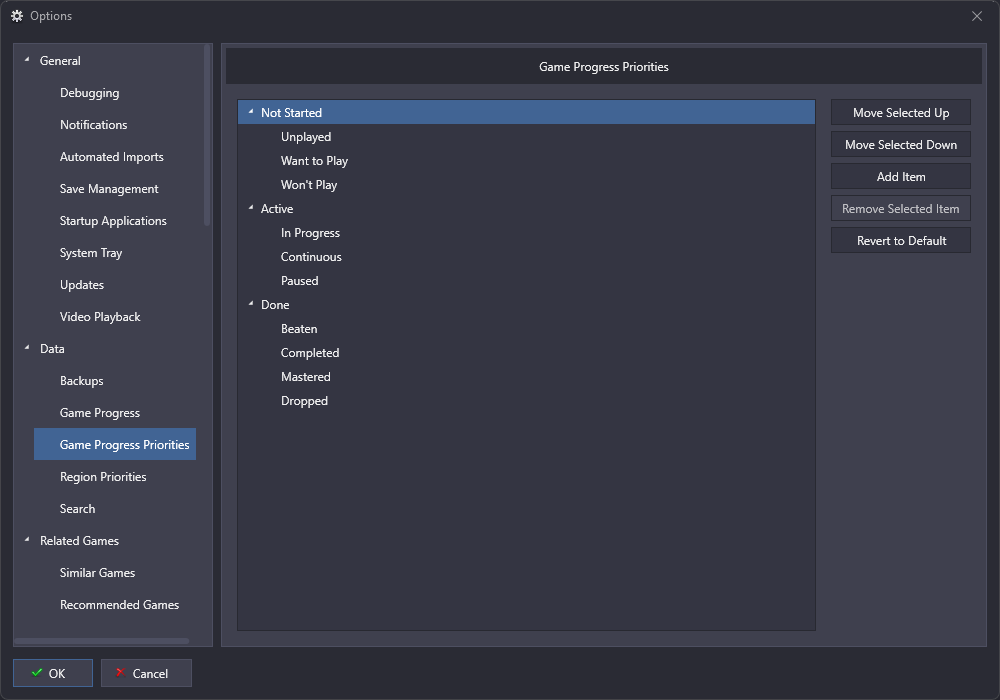
This order will reflect in the Edit Game dropdown, the on-the-fly Filter Button, and The Filter Sidebar section.
Automation Rules
Automation can save you time by automatically setting progress values based on criteria. You can enable/disable and customize this system from Tools > Options > Data > Game Progress.
🏆 RETROACHIEVEMENT USERS
You must rescan all of your games after the 13.22 update to grab the beaten status for your games. You can do this under Tools > Achievements > Scan All Games…
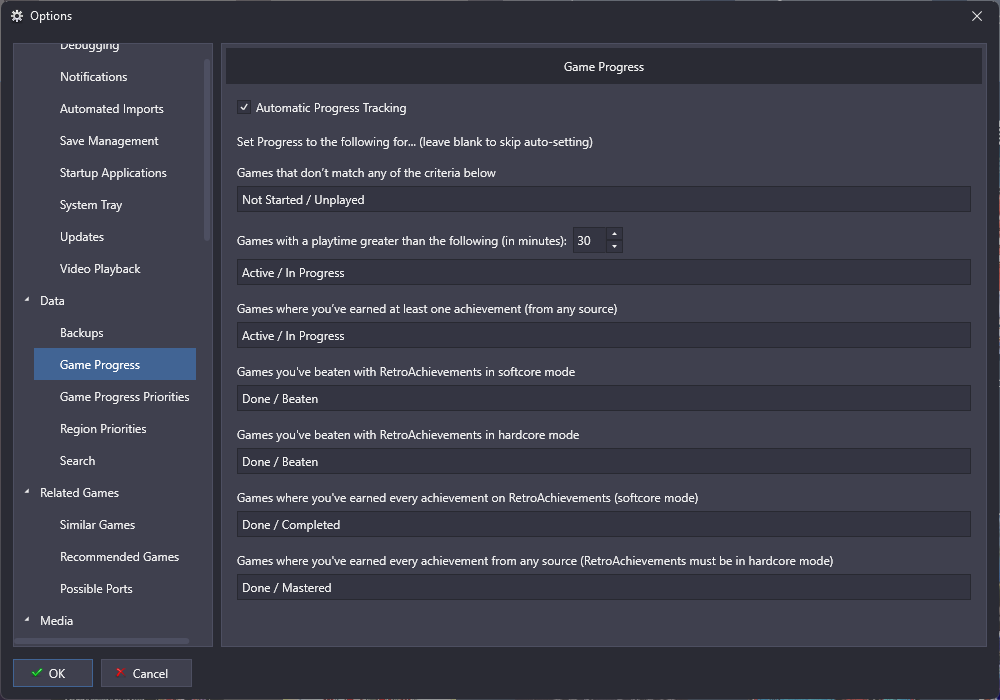
Default Rules and Values
Games that don’t match any of the below →
Not Started / UnplayedGames with playtime greater than the following (in minutes) →
Active / In ProgressGames where you’ve earned at least one achievement (from any source) →
Active / In ProgressGames you’ve beaten with RetroAchievements in softcore mode →
Done / BeatenGames you’ve beaten with RetroAchievements in hardcore mode →
Done / BeatenGames where you’ve earned every achievement on RetroAchievements (softcore mode) →
Done / CompletedGames where you’ve earned every achievement from any source (RetroAchievements must be in hardcore mode) →
Done / Mastered
Rules follow a priority system—whichever condition appears lower on the list and matches, wins.
“From any source,” refers to any achievement provider LaunchBox supports, which currently includes Steam, GOG, and RetroAchievements.
Badges
Enable the Progress Badge system via: Badges > Game Attributes > Progress. This displays dynamic badges in your game views that reflect each game's progress state.
We’ve updated the Nostalgic, White Outline, and White Filled badge packs with all necessary visuals.
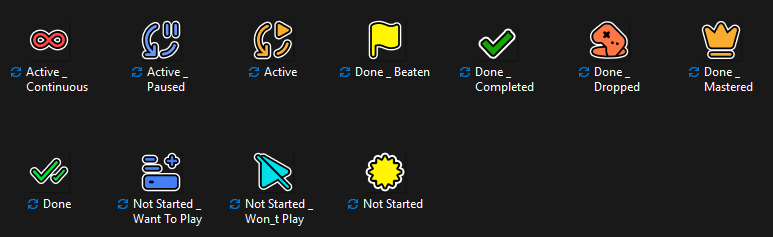
Badge Fallback System:
LaunchBox uses a smart fallback system to ensure a progress badge is always displayed, even if custom images are missing. When loading a badge, it first looks for an exact match using the full Category / Value combination—this is the most specific and preferred option (e.g., Active _ Paused.png). If no value-specific badge is found, it then falls back to a more general badge based on just the category name (e.g., Active.png). And if neither of those exist, LaunchBox will display a generic Progress.png badge instead. This tiered fallback approach ensures that every game can show a meaningful badge, whether you go all-out customizing every value or just cover the basics.
Value badge > Category badge > Generic Progress badge
Custom Badges:
Stored in:
LaunchBox\Images\Media Packs\Badges\[pack name]\ProgressFilenames:
Category _ Value.png(slashes become underscores)Example of Category / Value badge:
Active _ Paused.pngExample of Category badge:
Active.pngLocation
Progress.pngbadge:LaunchBox\Images\Media Packs\Badges\[pack name]
Custom pack builders can copy the Progress folder from our included packs to their own badge pack to start customizing.
As with all Media Packs, if your selected pack does not contain any of the fallback badges, we then utilize the Nostalgic pack as a last ditch effort to display a badge.
Filtering & Search
You can filter by progress in several ways:
On-The-Fly Filter Button – Shows categories and values, contextual to current game list
Search Bar – Use keywords like
Progress: Done / Beatenor justProgress: BeatenSidebar Filter Menu – Switch to the Progress section for a structured view where priority order is respected
Playlists
Progress values can be used in playlist creation:
Use on-the-fly filter button to segment games, then click the button again and use the buttom option to
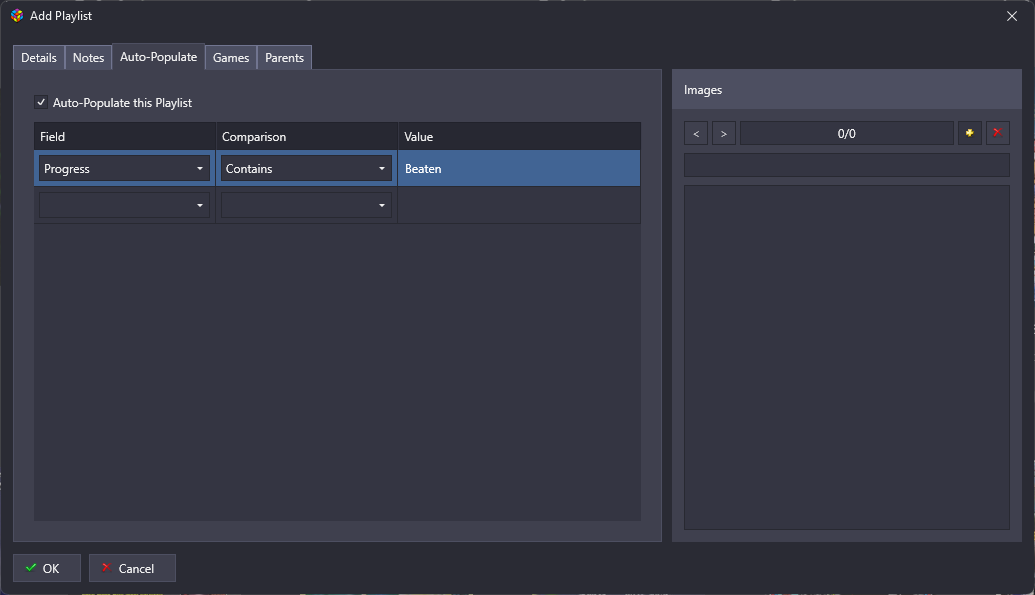
Save Filters to New Playlist...Use Auto-Populate Playlist rules with criteria like
Progress - contains - Beaten
Bulk Editing & Syncing
Bulk edit games by selecting multiple games in LaunchBox, then > Right-click > Open Bulk Edit Wizard…
Sync progress values across devices using
Tools > Cloud(requires a LaunchBox Games Database account to be signed in and Game Statistics Syncing be enabled)
Additional Notes
Only one progress value can be assigned per game
Case doesn’t matter, but consistent formatting is recommended
Special characters (except
/) should be avoided to simplify badge namingYou cannot rename or delete categories/values in use; must remove usage first
You can export progress data manually by copying from List View into a spreadsheet