Additional Apps
Learn how to use Additional Apps in LaunchBox to organize multi-disc games, regional variants, and extra files like strategy guides—all under a single game entry. Includes setup tips, import options, and how to access content in Big Box.
Written By AstroBob
Last updated About 1 year ago
Additional Apps are used to track and bundle together variations or related items of the same primary game, helping you keep your library neat and tidy. This feature gives you the freedom to organize games in a way that works best for your needs.
Here are some common use cases:
Multi-Disk Games: For games that support additional discs using individual files, you can keep all of those entries together.
Regional Variants: For collection purists out there, additional apps allow you to bundle the European, North American, and Japanese variants of a game.
ROM Hacks: If you're someone who collects ROM hacks, you can group them under the primary game that the hack is based on.
Additional Files and Docs: Additional Apps isn't just for tracking games — you could use it to track documents related to the main game, such as official strategy guides.
Let’s walk through how to set up and make the most of Additional Apps in LaunchBox. 🎮
🎛️ Accessing and Editing Additional Apps
To access a game's Additional Apps, right-click on the game and go to Edit > Edit Metadata/Media....
Then under Metadata > Additional Apps, you’ll see a list of all the additional apps for that game. You can add, edit, or delete apps using the respective buttons.
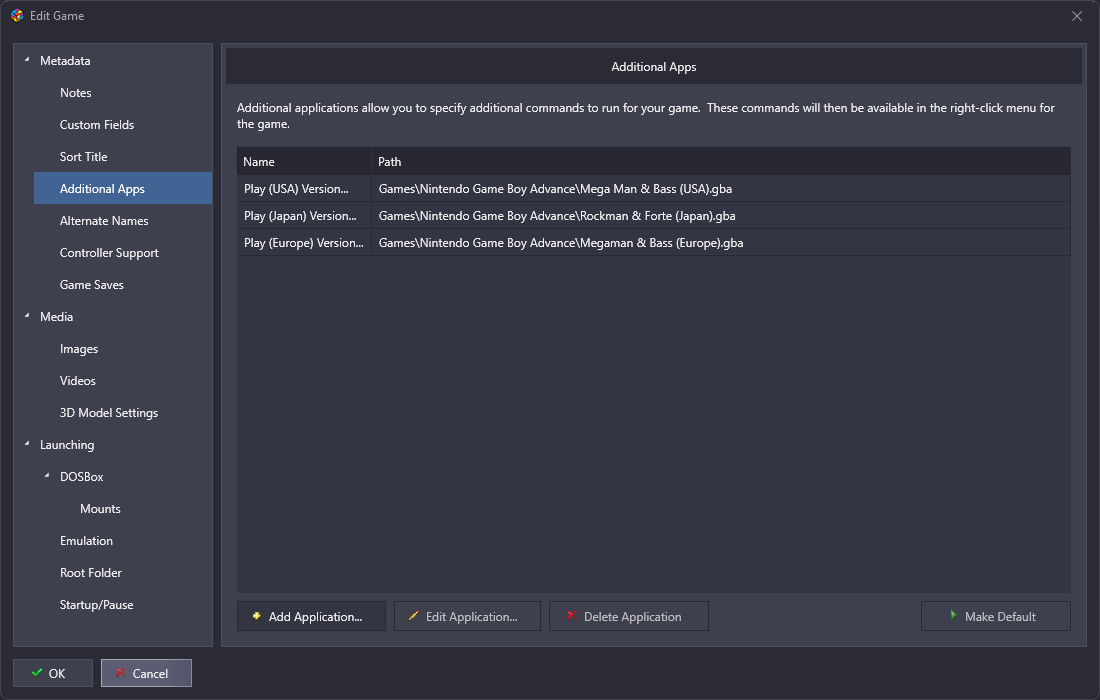
➕ Adding Additional Apps
In this example, we’re adding USA, EU, and Japan versions of a game as additional apps. Click Add Application and a popup will appear with three tabs:
Launch Tab
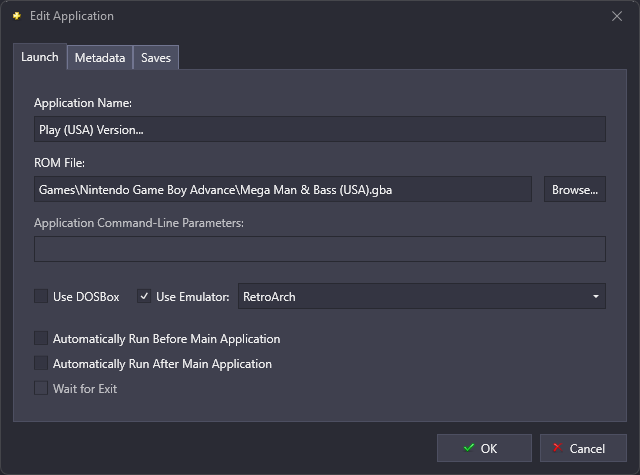
Application Name: Name of the additional app (this shows up in launch menus)
Application Path: The path to the game or file
Command-Line Parameters: Optional parameters if needed
Emulator Settings: Specify which emulator to use, and whether to run it before or after the main app (useful for companion tools)
For this setup, just add the game files, name them, and pick an emulator.
Metadata Tab
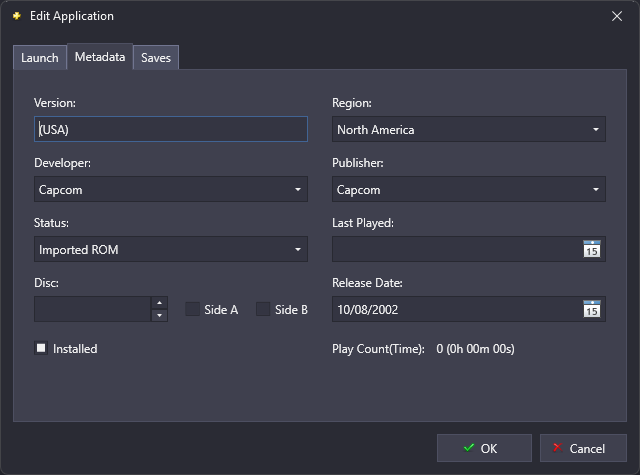
See metadata specific to the additional app. Especially helpful for regional variants which may have different release dates. If you auto-import your ROMs, LaunchBox will fill out much of this data automatically.
Note: Metadata such as Last Played, Playtime and Play Count is tracking seperately for additional apps, and is combined across all apps with viewing the primary game
Saves Tab
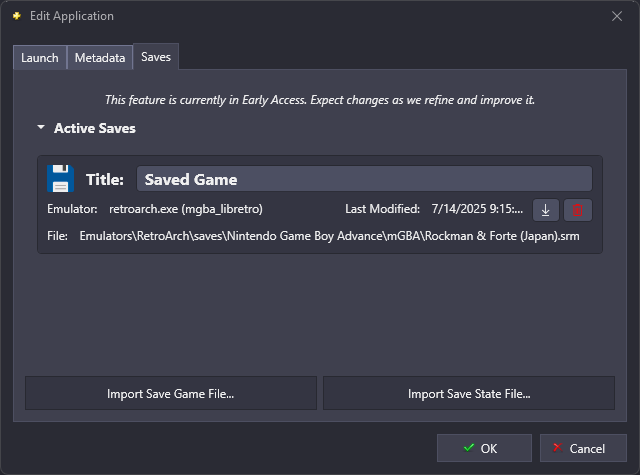
LaunchBox can track individual saves per additional app, just like it does for the main game. To learn more about save tracking, see the this doc ( Managing Save Games and States )
Setting The Default
Once you’ve added them, select the app you want as default (e.g., USA version) and click Make Default. This will set that app as the one that loads by default under the Launching section.
🎮 Launching Additional Apps
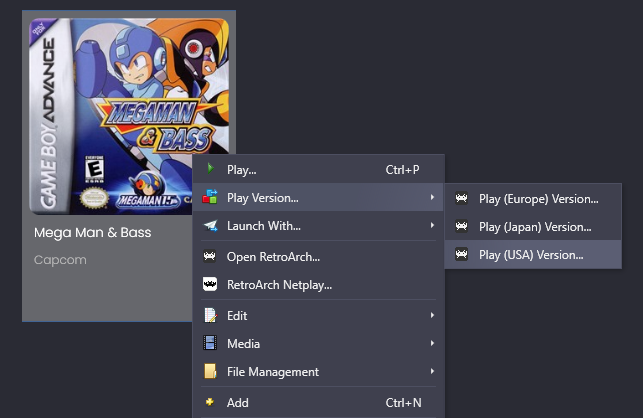
With your additional apps added, when you right-click your game, you’ll now see a new option under "Play" called Play Version, listing all the additional apps you’ve created for that game. Choose which one you want and LaunchBox will load that specific app or version.
⚙️ Automatically Creating Additional Apps
When using the LaunchBox Import Wizard or LaunchBox’s Auto-ROM import feature, LaunchBox will automatically create additional apps for games with:
Regional Variations
Multiple Discs
🏷️ Using Badges to Identify Additional Apps
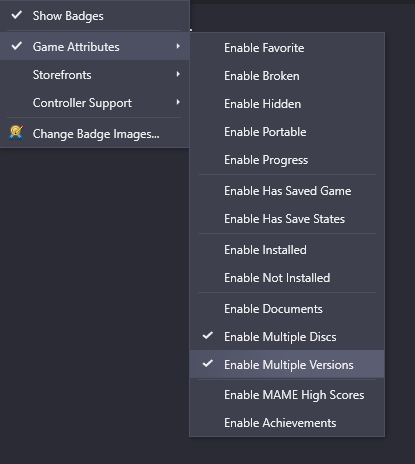
LaunchBox’s badge system makes it easy to identify games with additional apps:
Go to
Badges > Game AttributesEnable
Multiple DiscsorMultiple Versions
Games with:
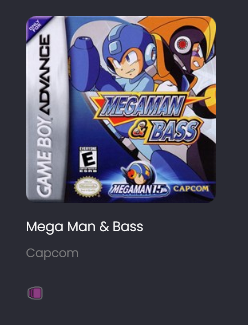
Multiple Discs will show one badge
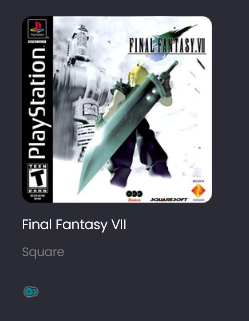
Multiple Apps will show another distinct badge
🔁 Combining & Expanding Additional Apps
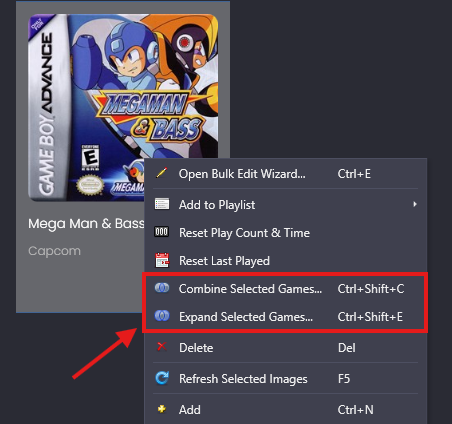
LaunchBox gives you full control over how additional apps are tracked by combining them into a single game entry, or expanding them into individual entries:
Combine
To merge two separate game entries into one:
Select both games
Right-click and go to
Edit > Combine Selected GamesChoose which game should become the default entry
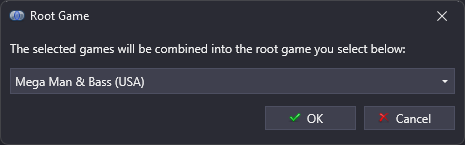
LaunchBox will then merge them, creating additional apps in the process.
Expand
To separate out additional apps into individual game entries:
Select the game and go to
Edit > Expand Selected Games
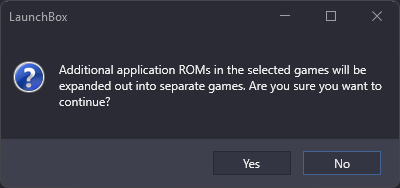
This will break out each additional app into its own separate game entry.
📄 Additional Documents
Games are not the only thing that can be tracked as additional apps. Let’s say you have a strategy guide PDF you want linked to a game. You can add this as an additional app.
However, unlike games, documents are accessed a bit differently:
First, we’ll add a
.pdffile as an additional appInstead of accessing it from the
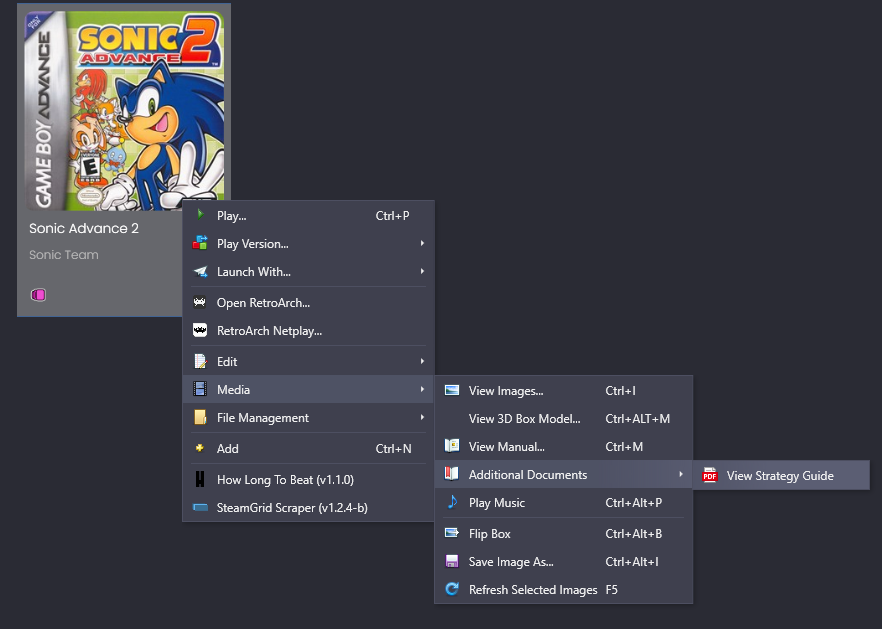
Play Versionmenu item like you would with games, documents are accessed from the the game’sMediasectionLook under
Additional Documents
Click any file listed there to open it. Perfect for accessing guides, manuals, or notes while playing.
🕹️ Accessing Additional Apps in Big Box
Big Box makes accessing Additional Apps just as seamless:
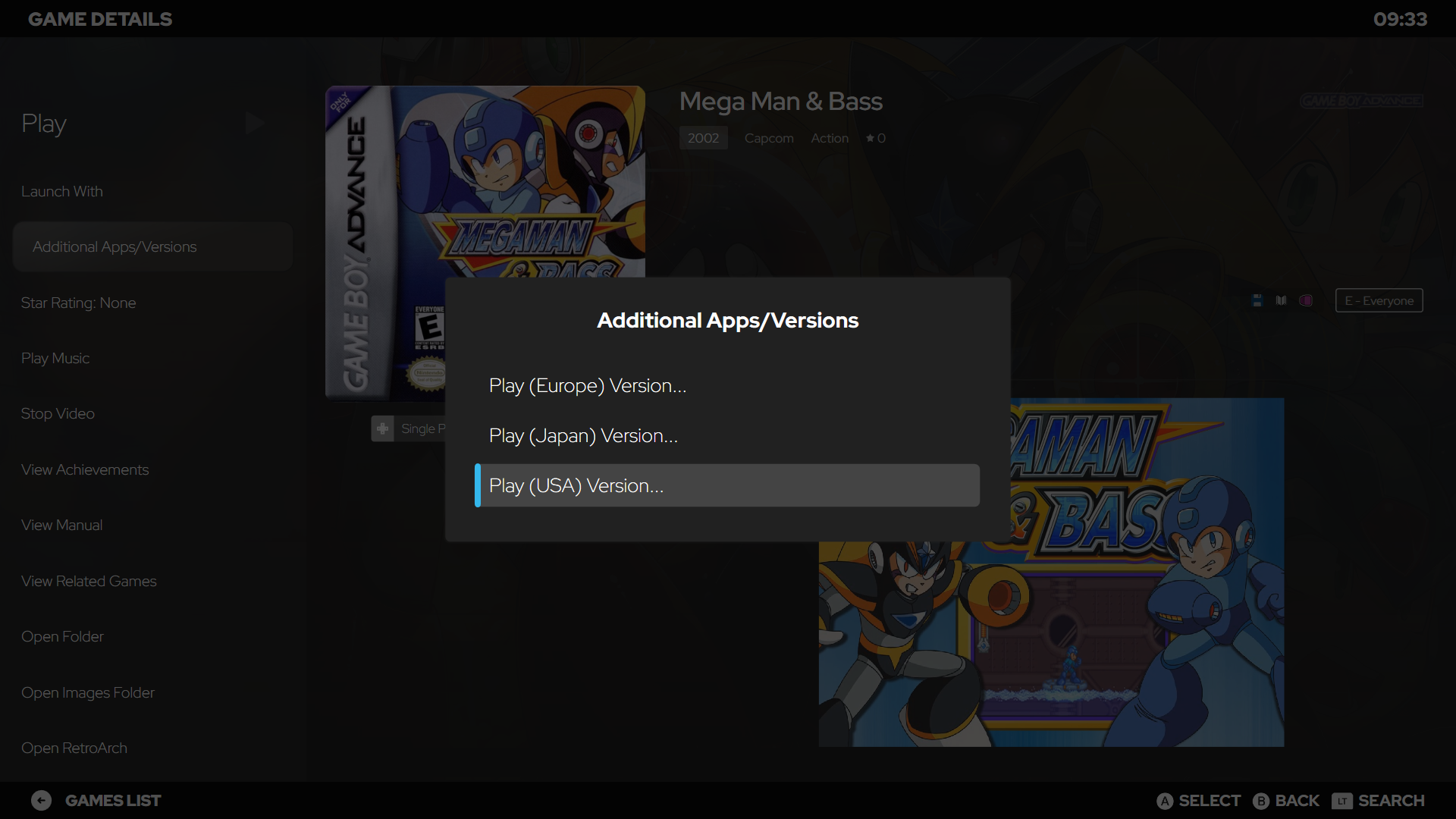
From a game's Game Details Page, you'll see a section for
Additional Apps/Versions. This allows you to pick and launch any additional apps associated with the game.
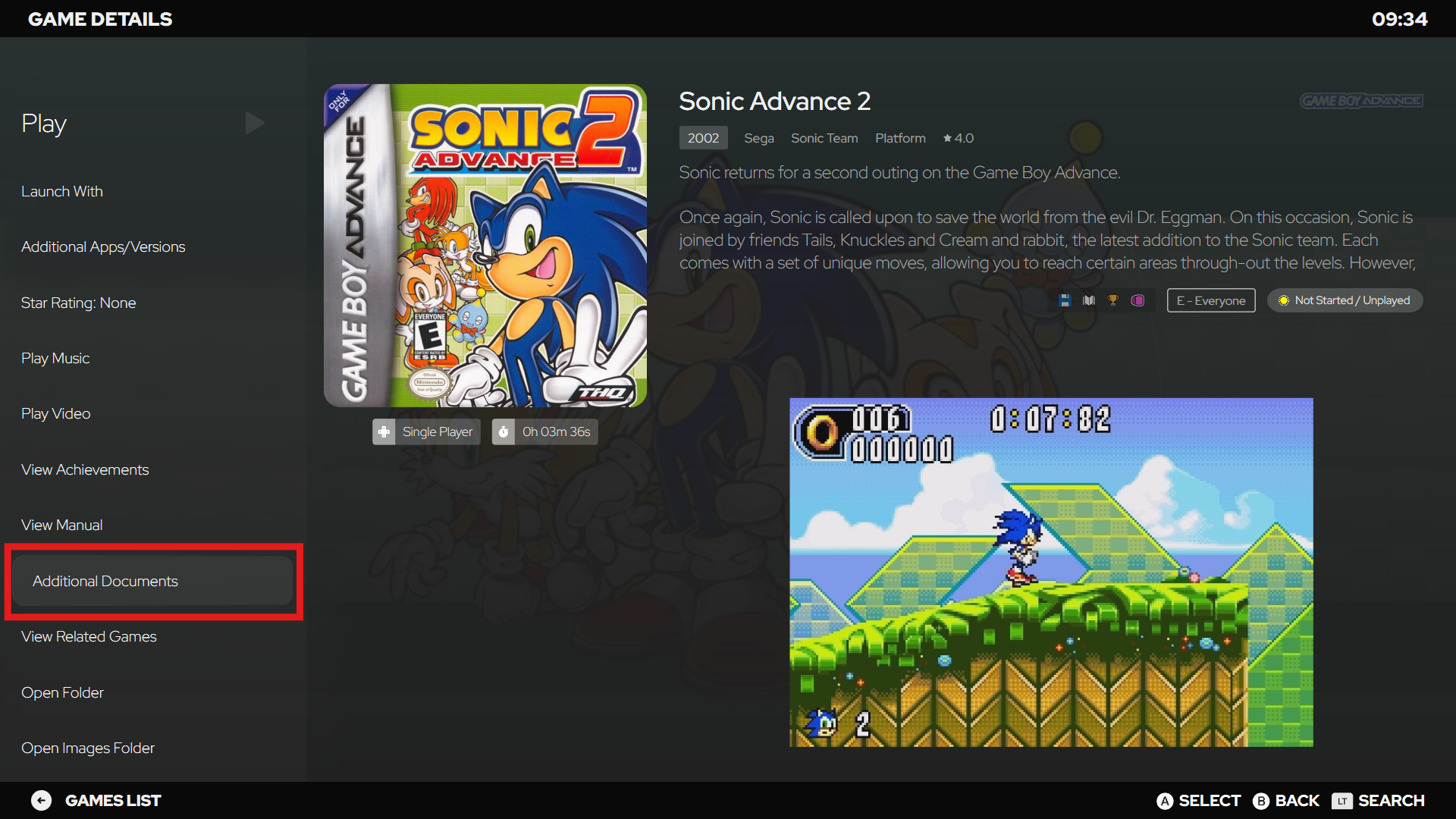
If you’ve added documents as additional apps, they will appear in a section called
Additional Documents
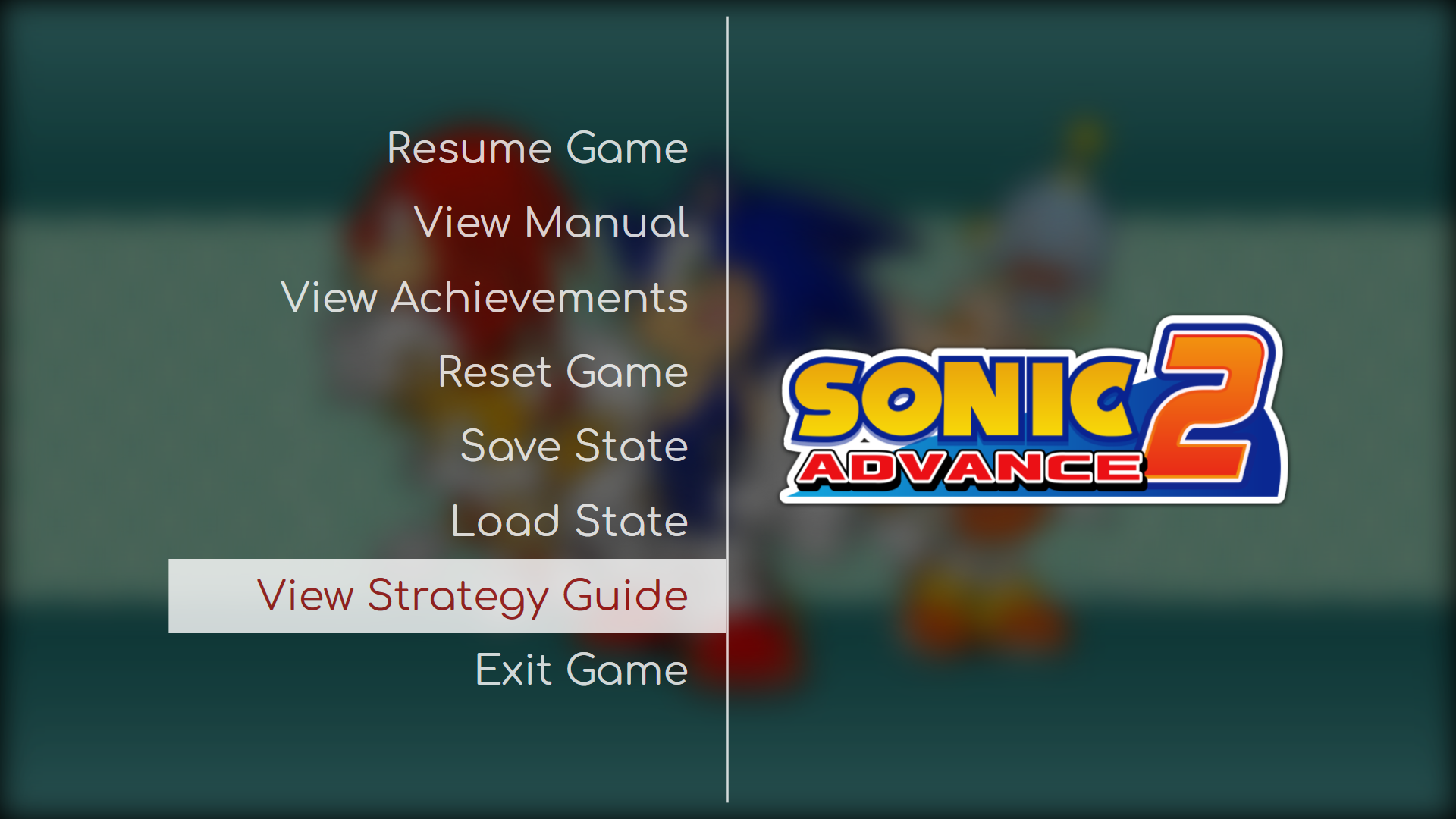
These documents can also be accessed via the Pause Menu while a game is running