Video Playback Guide
Written By Brian Faeran
Last updated About 1 year ago
Video playback in LaunchBox and Big Box is a Premium feature. If you haven’t already upgraded, check out our Premium page to unlock videos and many more advanced features.
📂 Adding Videos to Your Games
You can add gameplay videos to your games in a few different ways:
Manually
Edit a game in LaunchBox.
Go to the Videos section.
Assign your own video file from your computer.
Using an EmuMovies Account
If you have a paid EmuMovies subscription, you can automatically download videos.
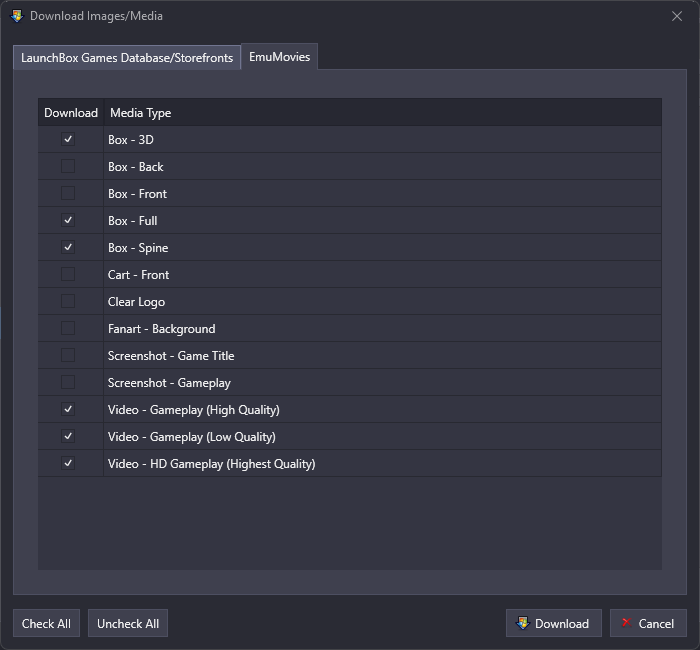
Edit a game, click Download Media, then open the EmuMovies tab.
Videos downloaded this way will automatically link to the game.
This also works in bulk:
During import, you can fetch videos for all your new games.
Already imported? Select multiple games, then → Tools > Download > Update Metadata and Media for Selected Games.
🖼️ Watching Videos in the Game Details Pane
In LaunchBox, videos appear in the media carousel inside the Game Details pane.
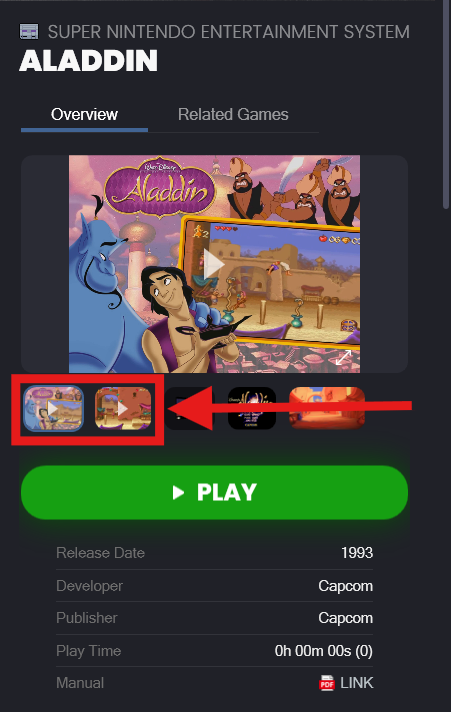
If your videos aren’t showing, go to Options > Visuals > Game Details and enable Show Videos.
You can play videos full screen by:
Clicking the full-screen button
Double-clicking the video
Pressing Enter on your keyboard
To exit full screen:
Press Escape on keyboard
Press Back on controller
Or click anywhere on the video
⚙️ Auto-Play Settings
You can control how videos play inside LaunchBox:
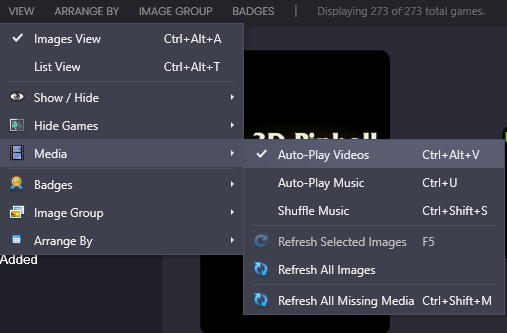
Go to View > Media and toggle Auto-Play Videos.
Enabled: The video will automatically play when you select a game.
Disabled: The video will appear in the carousel but won’t play until you click it.
🖥️ Video Playback Engines
LaunchBox and Big Box both allow you to choose between two different video playback engines. You can configure each app separately:
LaunchBox: Tools > Options > General > Video Playback
Big Box: System Menu > Options > Videos > Video Playback Engine
Both default to Windows Media Player.
▶️ Windows Media Player (WMP)
Pros
Lightweight and fast — fully integrated into Windows and .NET/WPF.
Uses Windows’ native media control, often more optimized.
Cons
Color Accuracy Issues: Some users see washed-out or inaccurate colors. This is caused by GPU driver settings limiting WMP’s color range. Users can fix this via their graphics control panel.
Secondary Monitor Glitches: On secondary displays, videos may appear dark/black at first, then pop in with artifacting. This happens because WMP relies on hardware overlays, which are only reliably supported on the primary monitor. It’s a long-standing limitation of WMP and graphics drivers that cannot be fixed from our end.
▶️ FFmpeg via FFME .NET Wrapper (FFME)
Pros
Plug-and-play — comes with robust codecs out of the box.
Reliable playback on any monitor (no black-screen or artifacting issues).
Cons
Heavier on system resources. Scrolling quickly through games can feel laggy.
Videos in Big Box may take slightly longer to load, sometimes appearing after the transition starts.
On slower CPUs, switching between videos can cause brief audio stutter if the UI thread is overloaded.
📝 Summary
Recommendation
Use WMP if you value lightweight performance and are running on a single primary monitor.
Use FFME if you want better codec support, multi-monitor reliability, and plug-and-play convenience, and you have the computer power to back it up.
Improvements are always ongoing with both of our video playback engines.