LaunchBox Reader
Written By AstroBob
Last updated 3 months ago
LaunchBox Reader is the built-in document reader used by LaunchBox and Big Box. It lets you open manuals, guides, magazines, comics, maps, books, reference cards, and other documents directly from your game library.
The goal is simple: when you want to check a manual or guide, you can open it from the game you are browsing instead of hunting through folders or switching to another app.
Quick note
LaunchBox Reader is optional. If you prefer using your normal Windows app or another reader, you can choose that instead from the Reader settings.
Why use LaunchBox Reader?
LaunchBox Reader is useful when your game library includes manuals, strategy guides, comics, magazines, maps, or other extra documents.
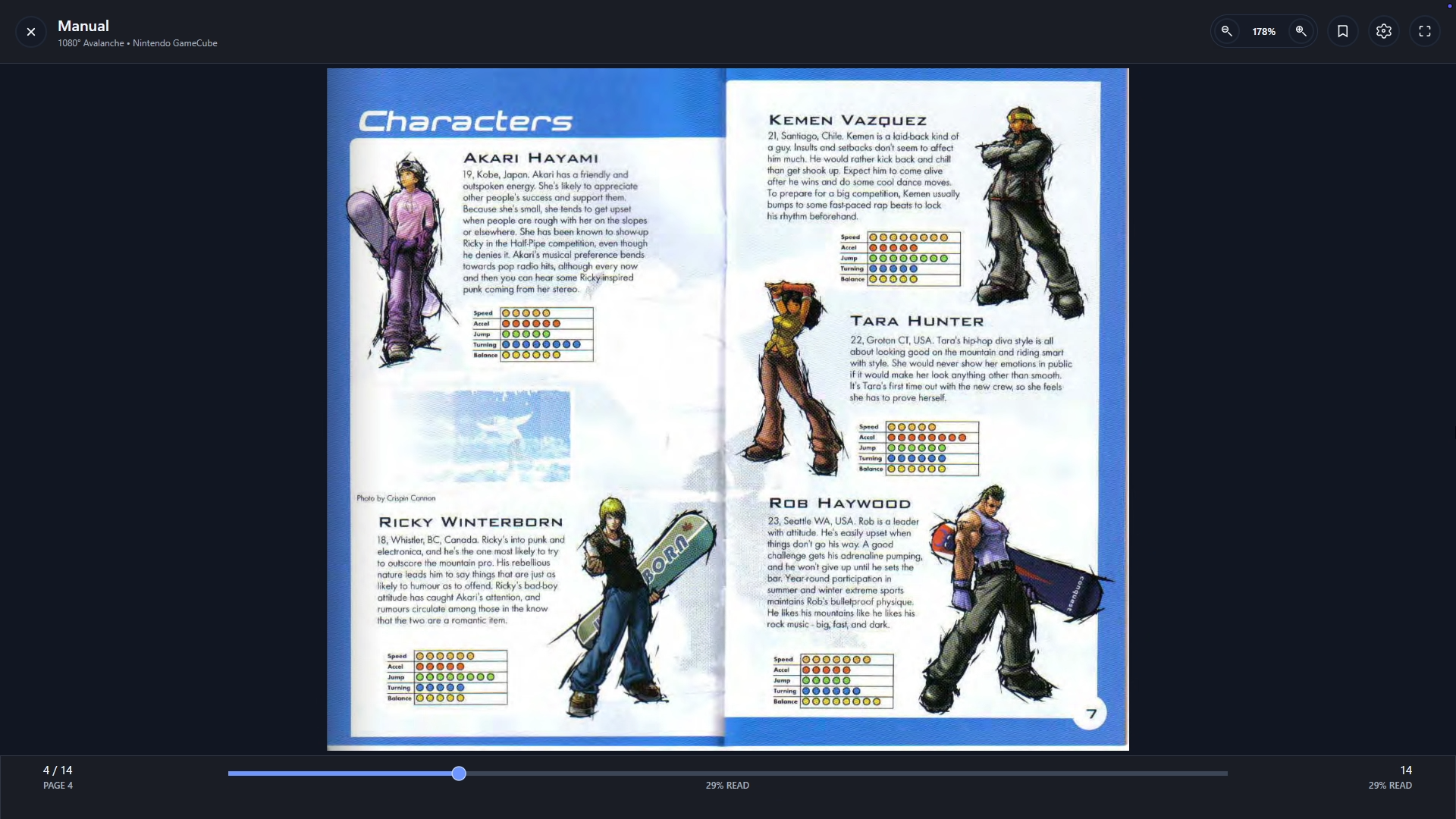
It can help you:
Open game manuals directly from LaunchBox or Big Box
Read documents without leaving your game library
Resume documents where you left off
Use fullscreen reading from a couch, TV, handheld, or arcade cabinet
Navigate documents more comfortably with a controller
Use themes, night mode, bookmarks, layout options, and reading preferences
For everyday use, you do not need to open LaunchBox Reader separately. Just open a manual or supported document from LaunchBox or Big Box, and LaunchBox will handle the rest.
Opening manuals and documents from LaunchBox
When a game has a manual or supported document attached, you can open it from that game inside LaunchBox.
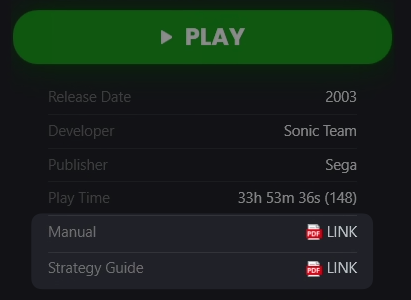
Depending on your view and setup, documents may appear in places such as:
The game details area
The game’s manual action
Additional documents attached to the game
Platform document areas, when documents are attached to a platform
Select the manual or document, and LaunchBox will open it using your selected Reader Provider.
Adding manuals and documents
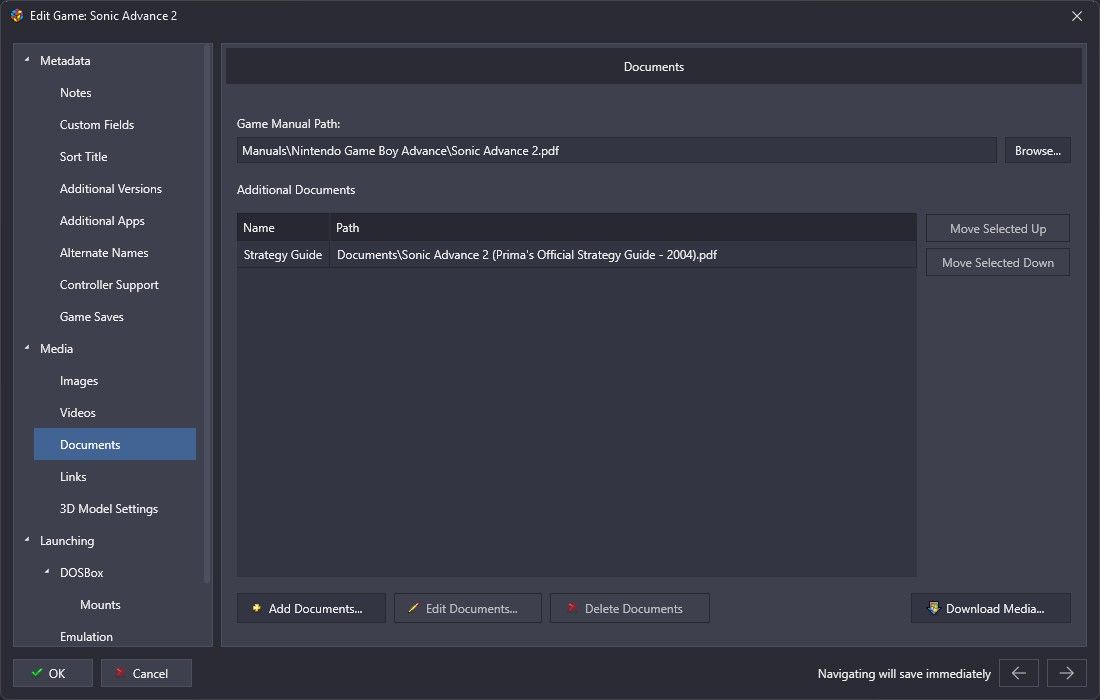
To add or change a game manual or attach additional documents, edit the game and open the Documents section. From there, you can link the manual, guide, map, or other supported document files you want available from LaunchBox and Big Box.
If a manual does not appear
Make sure the game actually has a manual or document attached. LaunchBox can only show documents that are already linked to the game or platform.
Opening manuals and documents from Big Box
LaunchBox Reader is especially helpful in Big Box because it keeps manuals and documents accessible from a TV, couch, arcade cabinet, or handheld setup.
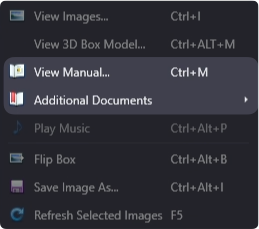
In Big Box, documents may appear as options such as:
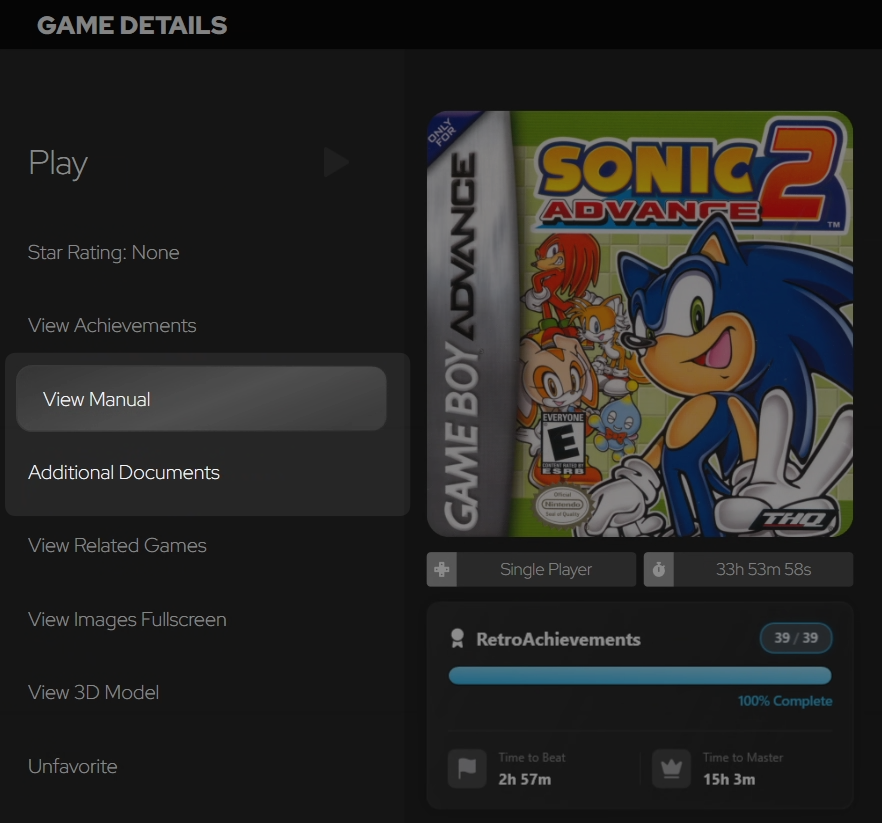
View Manual
Additional Documents
Document-related items in game or pause menus
When you open a supported document, Big Box will use your selected reader settings. If LaunchBox Reader is selected, the document opens in the built-in reader experience.
Reading documents in LaunchBox Reader
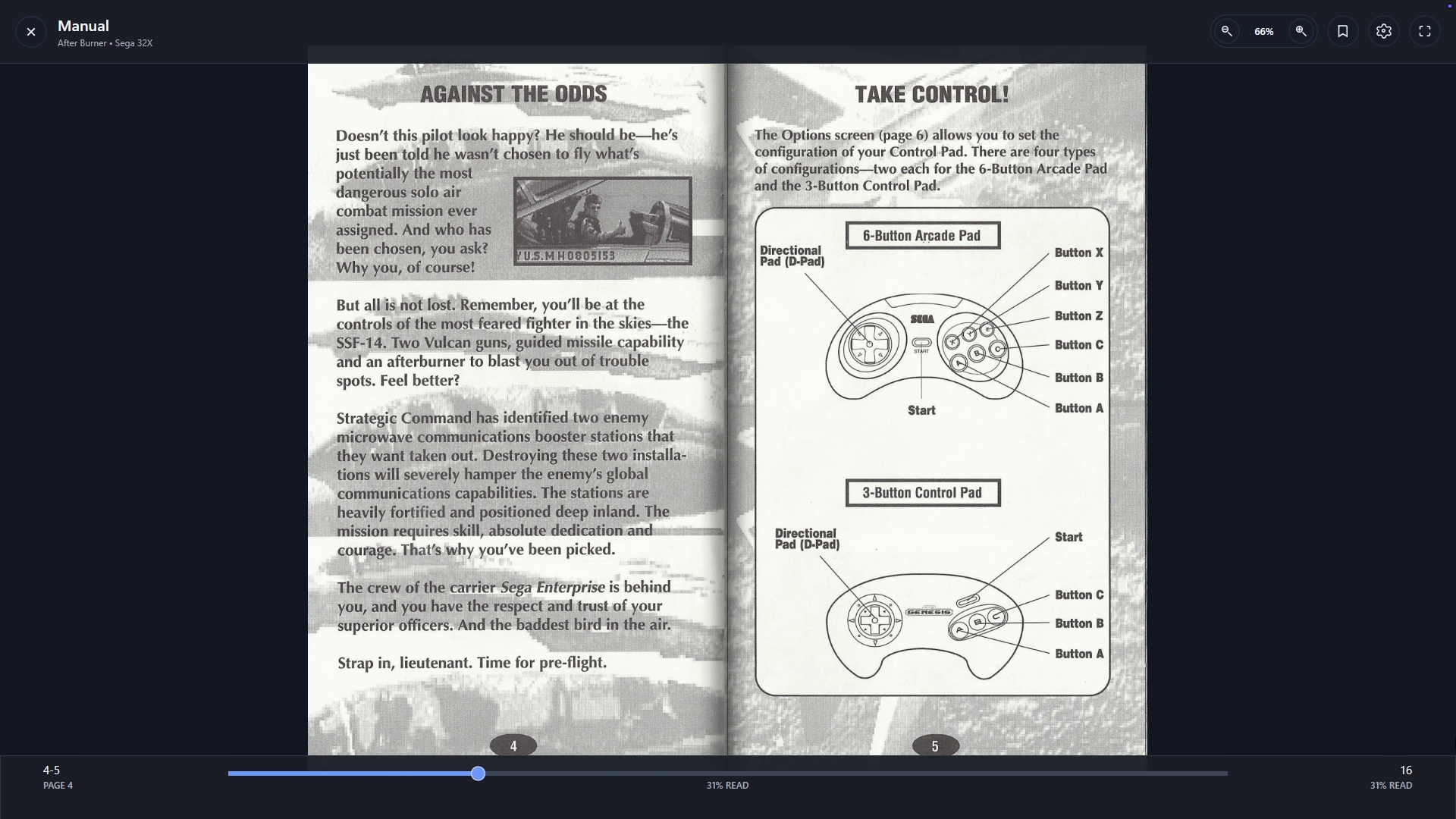
After a manual or document opens, LaunchBox Reader focuses on the document itself. The reader controls stay out of the way until you need them, which helps manuals, guides, books, and comics feel clean and easy to read.
Need to use the reader controls?
Click inside the document area first to bring the reader controls into focus. Once the reader has focus, keyboard and controller shortcuts will respond to the document instead of the surrounding LaunchBox interface.
The reader can be used with a mouse, keyboard, or controller. Depending on the document, you can move through it by:
Going to the next or previous page
Scrolling through continuous documents
Jumping with the progress control
Selecting an entry from the table of contents
Opening a saved bookmark
The top reader menu gives quick access to common actions such as closing the reader, opening contents and bookmarks, changing settings, adjusting zoom, and toggling fullscreen.
Your place is saved
When resume is enabled, LaunchBox Reader remembers where you stopped reading. The next time you open that document, it can return you to the same place.
Layouts, fit, and zoom
Different documents read better in different layouts. A scanned manual, comic archive, image folder, and EPUB book may not all feel right with the same settings.
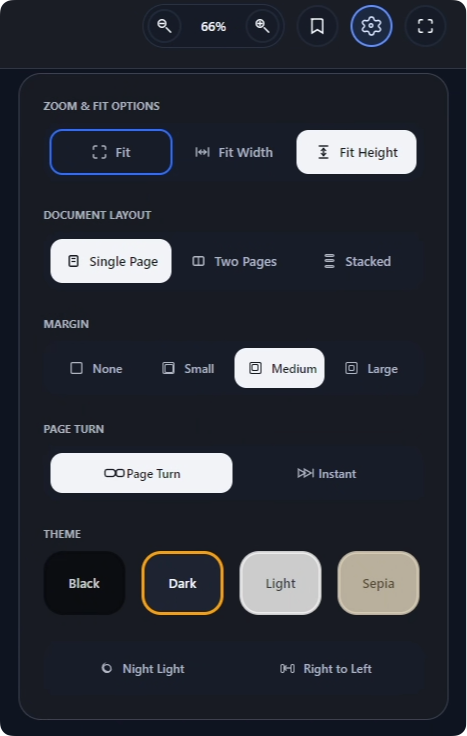
For fixed-layout documents such as PDFs, comics, image archives, and image folders, useful layout options include:
Single Page: Best for small screens, tall manual pages, or focused page-by-page reading.
Spread: Best for book-like reading where two pages make sense together.
Stacked: Best when you prefer to scroll through pages continuously.
Fit and zoom options control how large the page appears on screen:
Best Fit: Shows the full page or spread.
Fit Width: Expands the page to fill the available width.
Fit Height: Expands the page to fill the available height.
Zoom In / Zoom Out: Lets you manually adjust the size for closer reading.
If a scanned page has large borders, small text, or unusual dimensions, try changing the fit mode, zoom level, margin, or layout until it feels comfortable.
You can also change the Page Turn Style. This controls how moving between pages feels. Choose Instant if you want pages to change as quickly as possible, or choose the animated page-turn option if you prefer a more book-like visual effect.
Reading EPUB books
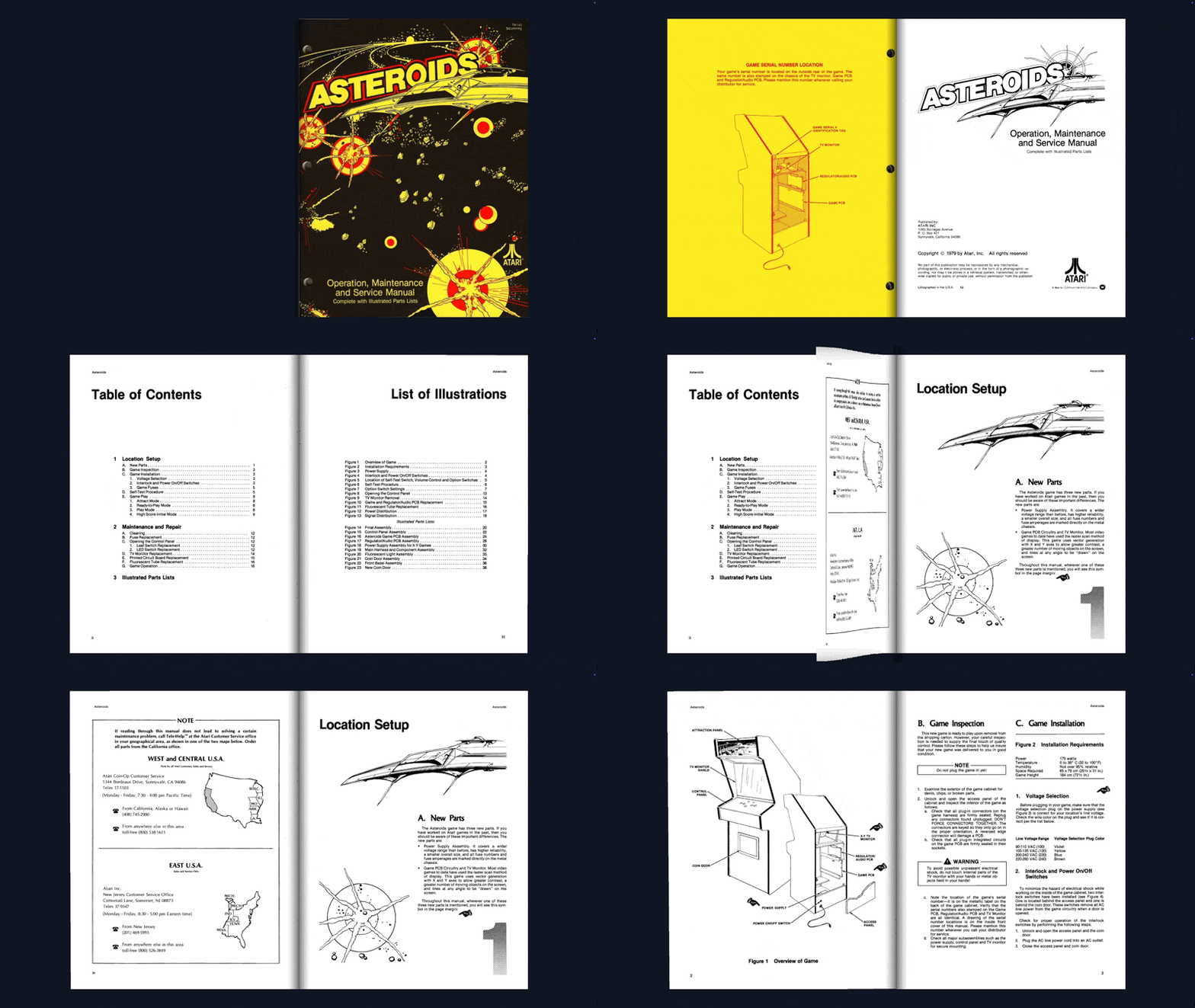
EPUB files are text-based books that can reflow to fit the reader window. This means the text can adapt when you change the window size or reading settings.
For EPUB files, you may want to adjust:
Single-page or two-page layout
Font family
Text size
Line spacing
Margins
Theme or night mode
These options are especially useful if you are reading long guides, books, or text-heavy documents instead of scanned manuals.
Using contents and bookmarks
The Contents panel helps you jump around a document without moving page by page. It can show a document-provided table of contents, your bookmarks, or both.
Use the table of contents to jump to chapters, sections, reference pages, or other document-defined locations. This is helpful for longer manuals and guides.
Not every document includes a real table of contents. Many scanned PDFs and image-based manuals are just page images, so there may not be section data for LaunchBox Reader to show.
Bookmarks are your own saved places in a document. They are useful for pages you expect to return to, such as:
Controls
Maps
Password pages
Move lists
Strategy sections
Important diagrams
To add a bookmark, open the document to the page or location you want to save, then use the bookmark action from the reader controls or your configured keyboard/controller shortcut. To return to it later, open the Contents panel and select the bookmark.
Bookmarks can also be renamed so they are easier to recognize later. Short names like Controls, Map, Passwords, or Boss Strategy work well.
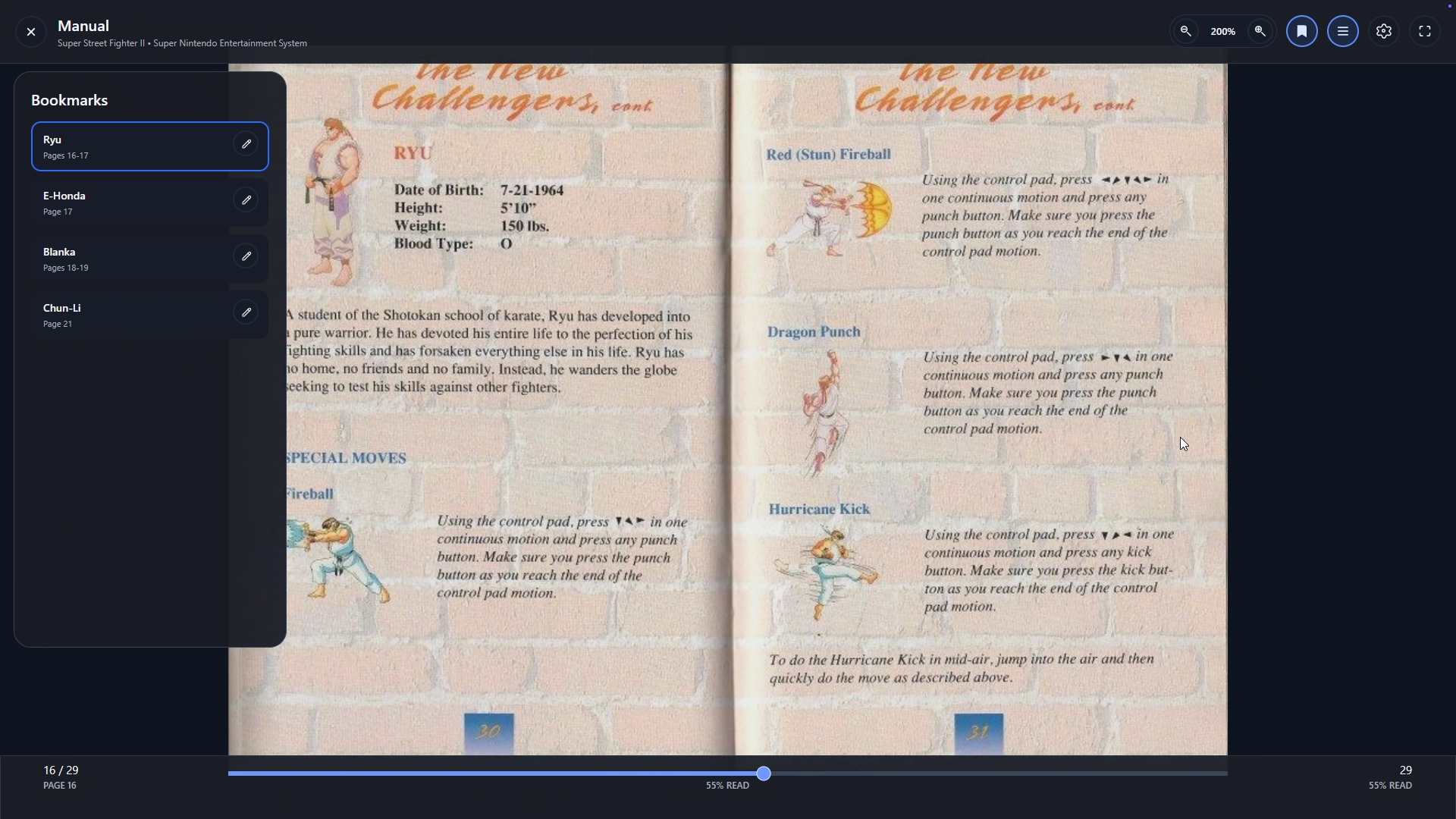
Documents without contents can still use bookmarks
If a document does not include table-of-contents data, the Contents panel can still be useful for the bookmarks you create yourself.
Choosing how documents open
You can choose which app LaunchBox uses when opening supported documents.
The Reader Provider options are:
LaunchBox Reader: Opens supported documents in the built-in LaunchBox Reader.
Windows Default Application: Opens documents using whatever app Windows normally uses for that file type.
External Reader: Opens documents using a specific reader app that you choose.
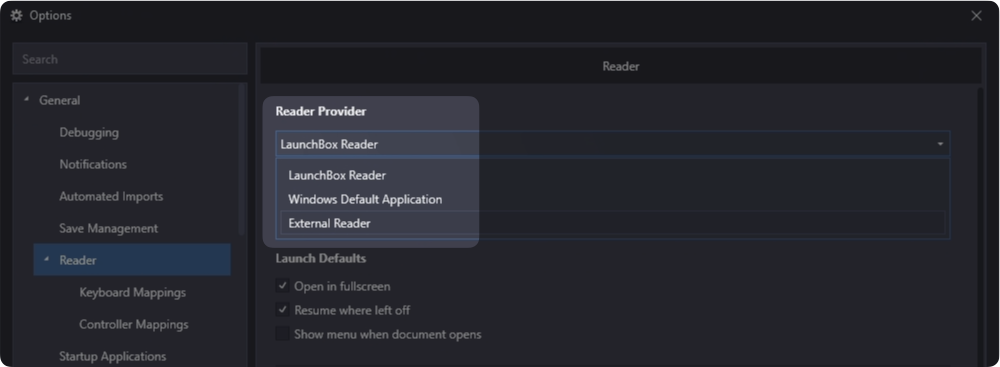
For the most integrated LaunchBox and Big Box experience, choose LaunchBox Reader. If you already prefer another app for PDFs, EPUBs, comics, or images, choose Windows Default Application or External Reader.
Useful reader settings
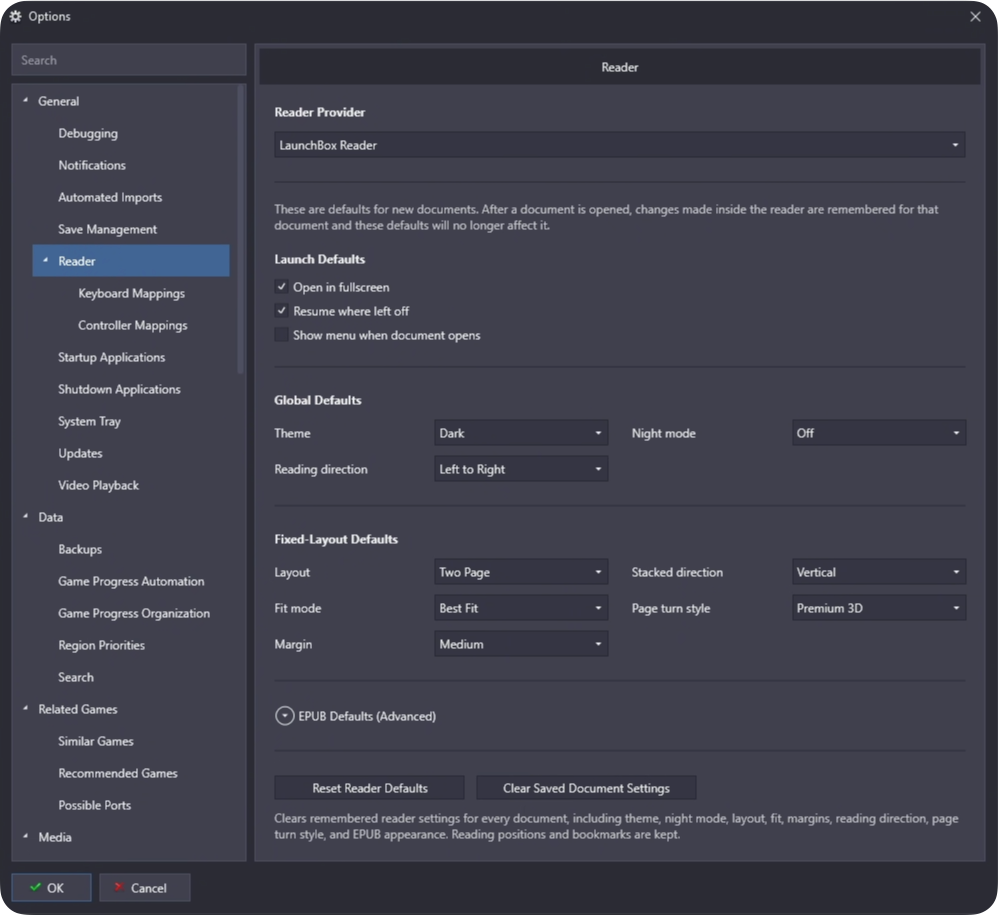
You do not need to adjust every setting before using LaunchBox Reader. The defaults are a good place to start.
The most useful settings for everyday users are:
Open in fullscreen: Great for Big Box, TVs, handhelds, and arcade cabinets.
Resume where left off: Reopens documents at your previous reading position.
Show menu when document opens: Helpful while learning the reader controls.
Theme and night mode: Makes reading easier in different lighting.
Layout: Controls whether pages appear one at a time, side by side, or stacked.
Fit mode: Controls how the page fits your screen.
Reading direction: Useful for documents that read left-to-right or right-to-left.
EPUB settings: Lets you adjust text size, font, line spacing, and layout for EPUB books.
If you are not sure what to choose, start with LaunchBox Reader, turn on resume, and leave the rest at the default settings until something feels uncomfortable.
Keyboard shortcuts
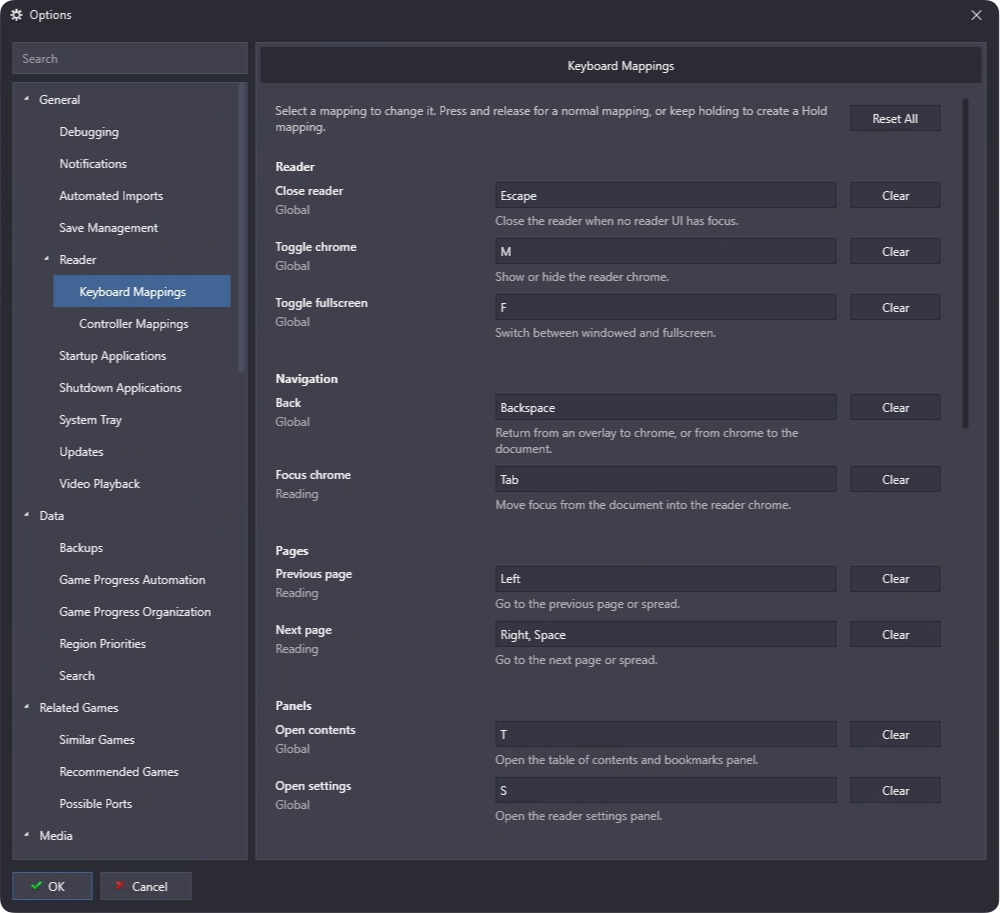
LaunchBox Reader includes keyboard shortcuts for the most common reading actions. These are helpful when reading from a keyboard, handheld keyboard, arcade setup, or any setup where you want quick control without using the mouse.
Back and Close are different
Backspace steps back from the current menu or panel. Esc closes the reader.
LaunchBox Reader also supports controller controls and custom mappings. For the full controls reference, see Keyboard and Controller Controls | LaunchBox Reader.
Supported document types
LaunchBox Reader supports common document and image formats used for manuals, books, comics, and scanned media.
Supported files include formats such as:
PDF documents
EPUB books
Comic archives such as CBZ, CBR, CB7, and CBT
Archives such as ZIP, RAR, and 7Z
Images such as JPG, PNG, GIF, BMP, and WEBP
Text documents such as TXT and RTF
Folders containing supported image files
If a file type is not supported by LaunchBox Reader, you may still be able to open it using the Windows Default Application or an External Reader.
Clearing saved document settings
If a document keeps opening with settings you no longer want, you can clear saved document settings from the Reader options page.
This resets remembered visual settings such as theme, night mode, layout, fit mode, margins, reading direction, page turn style, and EPUB appearance.
Reading positions and bookmarks are kept.
Using LaunchBox Reader as a standalone app
For deeper standalone help, see the dedicated guides for Reading Documents and Contents and Bookmarks.
Most LaunchBox users will interact with LaunchBox Reader through LaunchBox or Big Box. However, LaunchBox Reader can also be used as a standalone document reader.
The standalone reader documentation is more detailed and covers topics such as opening files directly, supported formats, reader controls, bookmarks, settings, troubleshooting, command-line usage, file layout, and developer integration details.
Standalone Reader documentation
For the dedicated LaunchBox Reader documentation, see Getting Started | LaunchBox Reader.
If you are only trying to read manuals from your LaunchBox library, you probably do not need the standalone documentation. Use this guide for the LaunchBox and Big Box workflow, and use the standalone docs if you want to learn more about LaunchBox Reader as its own app.
Troubleshooting
A manual or document opens in the wrong app
Check your Reader Provider setting. If it is set to Windows Default Application, LaunchBox uses the app Windows has assigned to that file type. Choose LaunchBox Reader if you want to use the built-in reader instead.
My external reader does not open
Make sure External Reader is selected and that the external reader executable points to a valid application file.
A document does not open in LaunchBox Reader
Make sure the file exists and is one of the supported document types. If the file type is not supported by LaunchBox Reader, try Windows Default Application or an External Reader.
Reader defaults are not affecting a document
That document may already have saved document-specific settings. Clear saved document settings if you want documents to use your current defaults again.
I want to keep my place in a document
Enable Resume where left off. LaunchBox Reader can remember your reading position so you can return later.
Was this helpful?
Still need help? Ask the team