Troubleshooting RetroAchievements Badges in LaunchBox
Written By AstroBob
Last updated 7 months ago
Use this guide if a game shows RetroAchievements correctly when launched directly in your emulator, but LaunchBox does not show a RetroAchievements badge for that game.
This guide is for cases where RetroAchievements works in the emulator, but LaunchBox does not show the badge.
For an overview of how RetroAchievements are integrated with LaunchBox, we reccomend reading this guide first:
RetroAchievements in LaunchBox
1. ✅ Make Sure RetroAchievements Is Connected in LaunchBox
Open LaunchBox.
Go to
Tools > Manage > RetroAchievements.Make sure you are signed in to your RetroAchievements account.
In that same area, make sure the achievement scan for your games has completed.
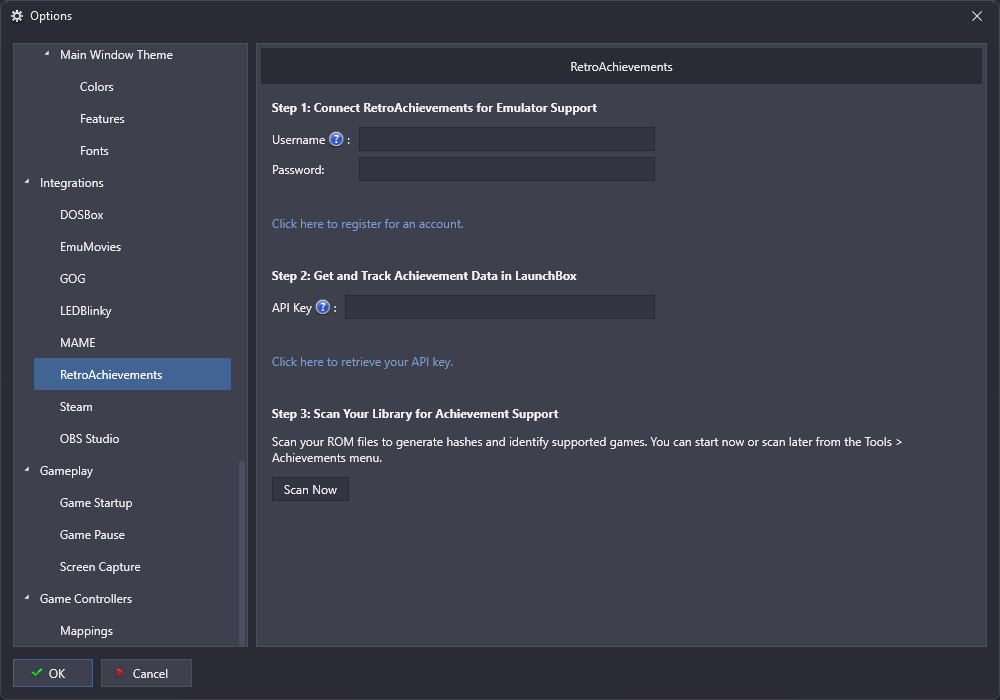
If LaunchBox is not signed in, or the scan has not finished yet, badges may not appear.
Always finish the RetroAchievements scan before checking game hashes or editing XML files.
2. 🔍 Check If the Problem Affects a Whole Platform or Just One Game
Before trying anything else, figure out which of these matches your issue:
No games on a platform show RetroAchievements badges
Only some games on a platform are missing badges
If no games on the platform show badges, the platform may not be matched to the correct RetroAchievements console.
If only some games are missing badges, the issue is usually with that game's file or with the way it was identified.
Whole platform issue = usually a platform mapping problem.
Only certain games = usually a game file or hash problem.
3. 🕹️ If the Entire Platform Has No Badges, Check the Scrape As Setting
LaunchBox uses the platform's Scrape As value to help match your platform to the correct console on RetroAchievements.
If the Scrape As value does not match what RetroAchievements expects, LaunchBox may fail to identify any games on that platform.
If an entire platform is missing badges, check the platform's
Scrape Asvalue before troubleshooting individual games.
Where to change it
In LaunchBox, go to
Tools > Manage > Platforms.Select the platform that is missing badges.
Click
Edit.Find the
Scrape Asfield.Set it to the console name used by RetroAchievements.
Save your changes.
Run the RetroAchievements scan again.
Example: WonderSwan and WonderSwan Color
RetroAchievements treats WonderSwan and WonderSwan Color as one console called WonderSwan.
If you have two separate platforms in LaunchBox:
WonderSwanWonderSwan Color
Then WonderSwan Color may not match unless its Scrape As value is also set to WonderSwan. Other common examples include the NeoGeo Pocket Color , PSP Minis and Famicom Disk System
To fix that:
Go to
Tools > Manage > Platforms.Edit
WonderSwan Color.Set
Scrape AstoWonderSwan.Save the platform.
Run the RetroAchievements scan again.
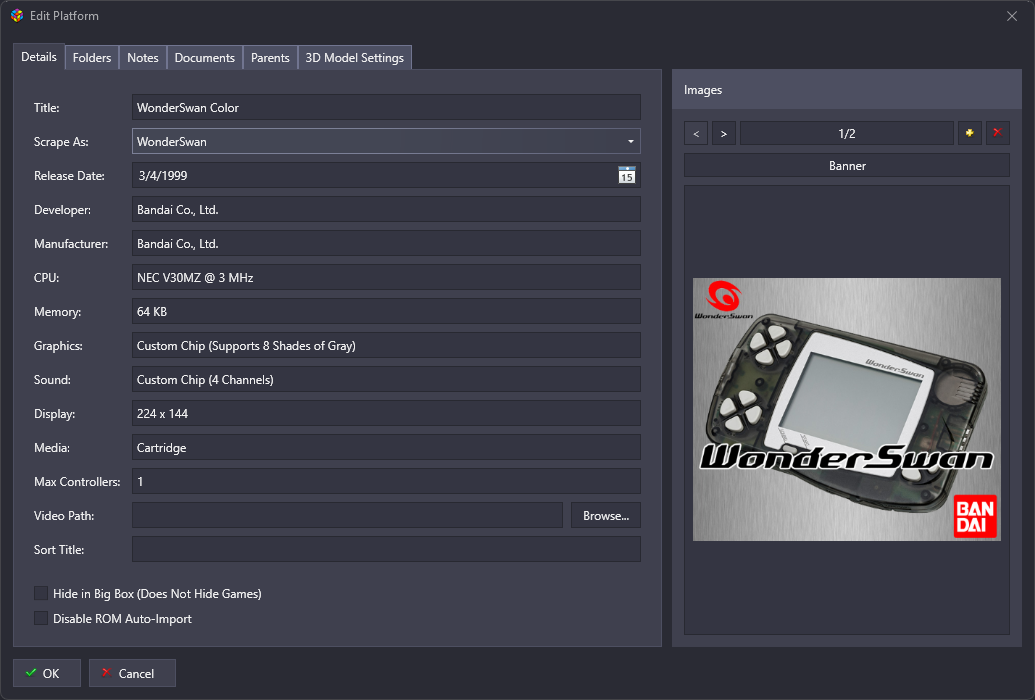
If the platform mapping was the problem, badges should start appearing after the scan finishes.
Also make sure you are using a supported file format
Even if the platform is mapped correctly, badges may still fail if the game files are in a format RetroAchievements does not expect for that platform.
Some systems are more sensitive to file format than others. A few common examples are:
Nintendo 64: the same game can exist as.n64,.v64, or.z64, and these formats can produce different hashesArcade: the exact contents of the ROM archive matter, so different archive versions may not match the same game on RetroAchievementsMulti-disc systems: RetroAchievements often expects you to use the correct playlist or disc entry, not just any individual track or disc file
If an entire platform is missing badges, compare a few games from that platform against the supported files listed on RetroAchievements.org and make sure the file format matches what RetroAchievements expects.
Some systems are more sensitive to file format than others. A game can be correct in name, but still fail to match because the file format is different.
4. 🎮 If Only Certain Games Are Missing Badges, First Confirm the Game Works in the Emulator
Before checking anything in LaunchBox, make sure the game itself really is being recognized by RetroAchievements in the emulator.
Launch the game directly in your emulator, not through LaunchBox.
Make sure you are signed in to RetroAchievements inside that emulator.
Start the game.
Wait for the RetroAchievements login or game recognition message.
Confirm that RetroAchievements recognizes the game correctly.
If the game does not identify correctly in the emulator itself, the issue is not specific to LaunchBox. In that case, first make sure you are using a supported version of the game and that RetroAchievements is working correctly in the emulator.
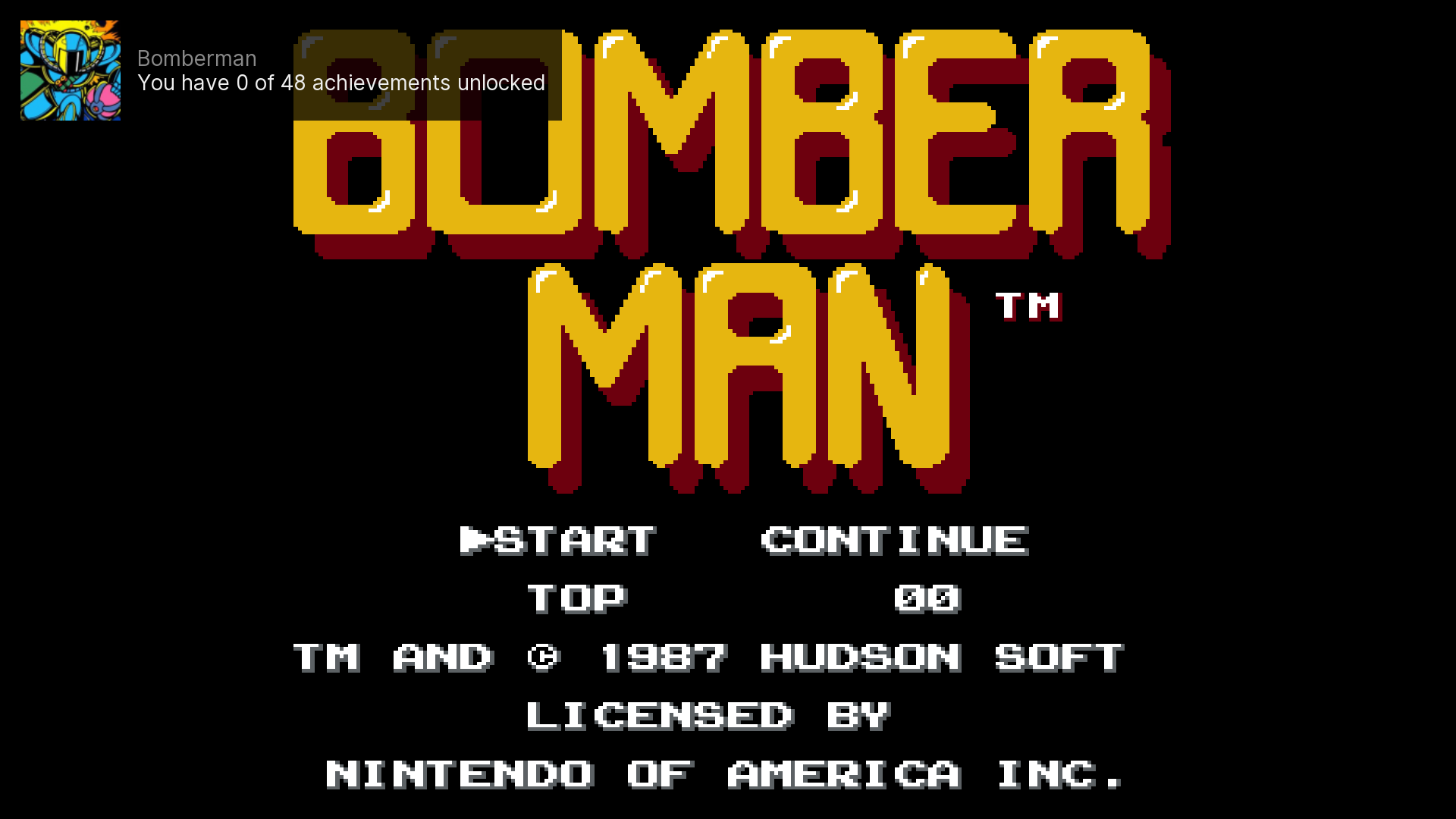
If the game does not work in the emulator first, LaunchBox will not be able to show the correct badge for it.
5. 🧩 Let LaunchBox Calculate the Game Hash
Hashes are just identification values used to tell one game file apart from another.
For RetroAchievements, the important part is this: not every game file is treated as the same game, even if the names look similar. A different region, revision, translation patch, archive format, or modified dump can produce a different result.
The easiest beginner-friendly way to check what LaunchBox identified is to let LaunchBox calculate the value first, then read the saved result.
You do not need to calculate the hash yourself. The easiest method is to let LaunchBox scan the game first, then read the saved
RetroAchievementsHashvalue.
Step by step
In LaunchBox, run the RetroAchievements scan for your games.
After the scan finishes, close LaunchBox.
Open your main LaunchBox folder in File Explorer.
Open the
Datafolder.Open the
Platformsfolder.Open the XML file for the platform your game belongs to.
Use Find in the text editor and search for the game's title or game path.
Look for this line in that game's entry:
<RetroAchievementsHash>VALUE-HERE</RetroAchievementsHash>
Copy the value between the tags.
That is the RetroAchievements hash LaunchBox used for that game.
If there is no RetroAchievementsHash value yet, run the RetroAchievements scan again and then check the XML file one more time.
A hash is just an identification value for a file. It helps LaunchBox and RetroAchievements decide whether your game matches a supported version.
6. 🌐 Compare That Value to RetroAchievements.org
Once you have the RetroAchievementsHash value from LaunchBox, compare it to the supported files listed on RetroAchievements.org.
Open the game's page on RetroAchievements.org.
Open
Hashes linked to this gameorSupported Game Files.Compare the value from LaunchBox to the values listed there.
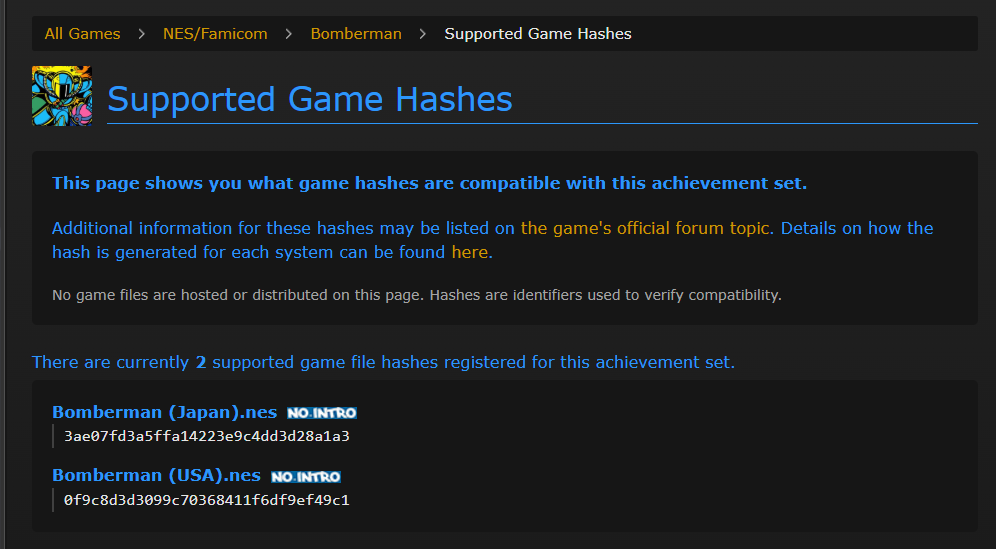
If the value from LaunchBox is not listed there, then LaunchBox could not match that game file to a RetroAchievements game entry.
When comparing, also make sure these details match:
Region, such as
USA,Europe, orJapanRevision or version, such as
Rev 1File type or format
Whether the game is zipped or extracted
Whether the game is patched, translated, hacked, or otherwise modified
If your emulator is launching one copy of the game, but LaunchBox imported a different copy, the emulator may show achievements while LaunchBox does not show a badge.
Matching game title does not always mean matching game file. Region, revision, patch, format, and archive type can all matter.
Special note for multi-disc games
For some disc-based systems, RetroAchievements expects a playlist file instead of a single disc file.
If your game has multiple discs:
Check the supported files page on RetroAchievements.org.
Make sure you imported the correct file type into LaunchBox.
If RetroAchievements expects an
.m3uplaylist, import and launch the.m3ufile instead of importing only one disc by itself.
This is especially important for systems like PlayStation where multi-disc setups are common.
If the supported files page shows an
.m3ufile, import the.m3uinto LaunchBox instead of importing only one disc by itself.
7. 🛠️ If You See COULDNTFILEHASH
Sometimes LaunchBox cannot calculate the hash for a game. When that happens, you may see this in the XML file:
<RetroAchievementsHash>COULDNTFILEHASH</RetroAchievementsHash>
This means LaunchBox previously failed to calculate a RetroAchievements hash for that file.
COULDNTFILEHASHis not the same as a real RetroAchievements hash. It means LaunchBox was unable to identify the file.
What to do
If you have not done so already, replace the bad file with the correct game file inside LaunchBox.
Run the RetroAchievements scan again.
Check the XML file again.
In some cases, LaunchBox may try again and replace COULDNTFILEHASH with the correct value.
If COULDNTFILEHASH is still there after replacing the file and scanning again, you can clear it manually:
Close LaunchBox.
Open
Data > Platforms.Open the XML file for that platform.
Find the correct game entry.
Delete the text
COULDNTFILEHASHfrom the<RetroAchievementsHash>field, or remove the whole<RetroAchievementsHash>line.Save the XML file.
Open LaunchBox again.
Run the RetroAchievements scan again.
This forces LaunchBox to try hashing the game again.
For most games, this manual step may be necessary because a normal scan does not always clear COULDNTFILEHASH automatically once it has already been written to the XML file.
If you replaced the game with a known good copy and
COULDNTFILEHASHis still there, clearing that field manually is often the fastest fix.
8. 🧪 Advanced Option: RAHasher.exe
LaunchBox includes a tool called RAHasher.exe in ThirdParty > RetroAchievements.
This tool can be used to calculate a RetroAchievements hash manually, but it is intended for advanced troubleshooting. It requires command-line use and the correct RetroAchievements console ID for the system.
For most users, the easier method is still:
Let LaunchBox scan the game
Read the
RetroAchievementsHashvalue from the platform XMLCompare that value to the supported hashes on RetroAchievements.org
RAHasher.exeis best treated as an advanced tool. Most users should not need it.
9. ❓ Can I Just Copy the Hash From RetroAchievements.org Into the XML?
Technically, if you manually paste a valid RetroAchievements hash into the game's <RetroAchievementsHash> field, LaunchBox may then be able to match the game and show the badge.
However, this is not the recommended approach for most users.
Why this is not ideal:
It does not confirm that the file in LaunchBox is actually the same file as the one listed on RetroAchievements.org
It can make the badge appear even if the imported file is still the wrong version, region, revision, or format
If the file changes later, the manually entered value may become incorrect
It is easier to make mistakes when editing the XML by hand
The better approach is:
Confirm the game works in the emulator
Let LaunchBox calculate the hash
Compare that value to RetroAchievements.org
Fix the game file or clear
COULDNTFILEHASHif needed
Manual editing should be treated as advanced troubleshooting, not the normal fix.
Manually pasting a hash can make the badge appear even when the actual file is still wrong.
10. 📝 Summary
If LaunchBox is missing RetroAchievements badges:
Make sure you are signed in and the scan has finished.
Check whether the issue affects a whole platform or only certain games.
If the whole platform is affected, verify the platform's
Scrape Asvalue.If only certain games are affected, confirm the game works in the emulator first.
Let LaunchBox calculate the
RetroAchievementsHash.Compare that value to the supported hashes on RetroAchievements.org.
If needed, clear
COULDNTFILEHASHand scan again.
Was this helpful?
Still need help? Ask the team